Highlights
- A whole new look. Every page of the portal and your booking page has been redesigned, and pages now switch almost instantly.
- Your dates and booking on your own website. Design website widgets in CourseCloud, paste one line of code, and see how many people view, click and book from each one.
- From sign-up to taking bookings in minutes. Sign up with a password, skip anything optional, and go live on invoice straight away, with card payments added whenever you are ready. Setup can fill itself in from your website.
- Bring everything across. Import customers, learners, events, attendance and training records from a spreadsheet, HubSpot, Mailchimp or Eventbrite.
- Plans that grow with you. Start free, move to Core when you are ready, and add only the extras you want. Change plan yourself in Settings, and the price you join at is protected.
- Autopilot for the busy work. See which courses will run, rebook renewals, chase unpaid invoices and find cover when a trainer is off. You decide what happens automatically.
- Win more work, and run a faster portal. Revenue Radar, quotes that follow themselves up, customer health, a trainer app, marketing that really sends, and pages that switch instantly.
Use Find in this update to show only the sections that mention it, or search every update at coursecloud.co.uk/updates. Results take you straight to the right section.
The screenshots in these notes show Ridgeway Safety Training, a made-up demo company. Every name and figure in them is invented.
A new look, inside and out
CourseCloud has been redesigned from top to bottom. Pages are cleaner, figures are easier to read, and colour is used only where it means something: green for good, amber for soon and red for needs action.
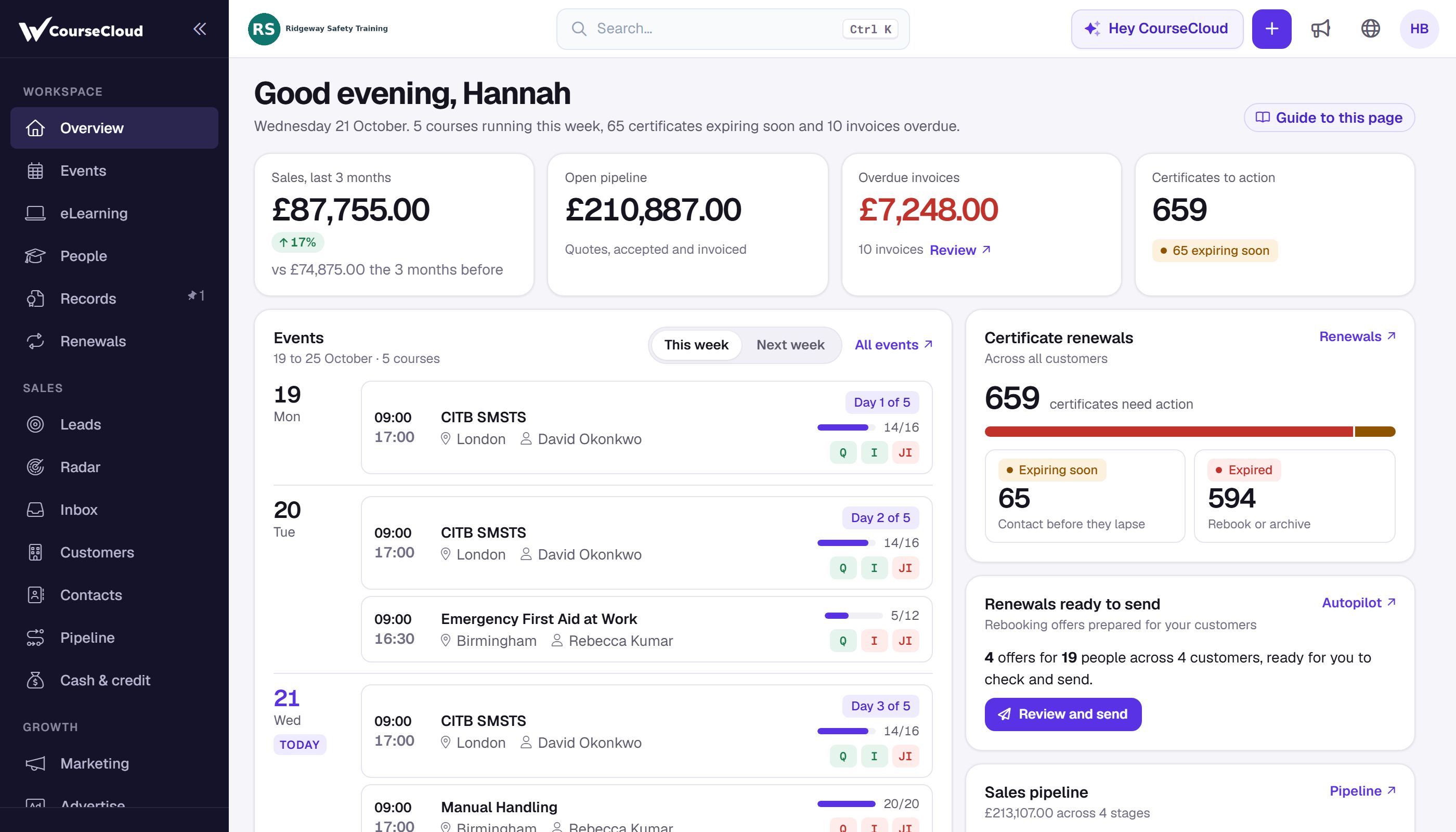
- A sidebar in three groups: your workspace (Overview, Events, People, Records, Renewals), your sales (Leads, Radar, Inbox, Customers, Contacts, Pipeline, Cash & credit) and growth (Marketing, Advertise, Analytics). Fold it away and hover an icon to see its name. A small lock marks anything that is not in your plan.
- One + button in the top bar creates an event, a quote, a reminder, a contact, a customer or a lead, or a lead from an email.
- The same header on every list, with the title on the left, the main action on the right and the tabs underneath, so tables start higher up the page.
- Your profile photo shows in the top bar instead of your initials.
- New pop-ups. Every pop-up shares one design, closes with Esc, and dropdowns inside them have a search box.
- Faster everywhere. Pages switch without reloading the whole screen, links start loading as you point at them, and while a slower page loads you see its outline rather than a spinner. Settings pages open up to four times faster.
A new Overview
Overview now greets you with your day in one sentence, such as "5 courses running this week, 65 certificates expiring soon and 10 invoices overdue". Four figures follow: Sales, last 3 months, Open pipeline, Overdue invoices and Certificates to action, and each one opens the detail. Below them are your events for this week or next, recent leads and customers, certificate renewals, your sales pipeline and sales performance. Renewals ready to send and Events at risk appear when there is something to act on.
At the foot of the page, What CourseCloud did for you shows the last 12 months: what you got back for what you pay, bookings taken online, customers the marketplace found you, renewals due and admin time saved. How these are worked out shows the working behind each figure, and Full impact report opens the printable version.
Your booking page, redesigned
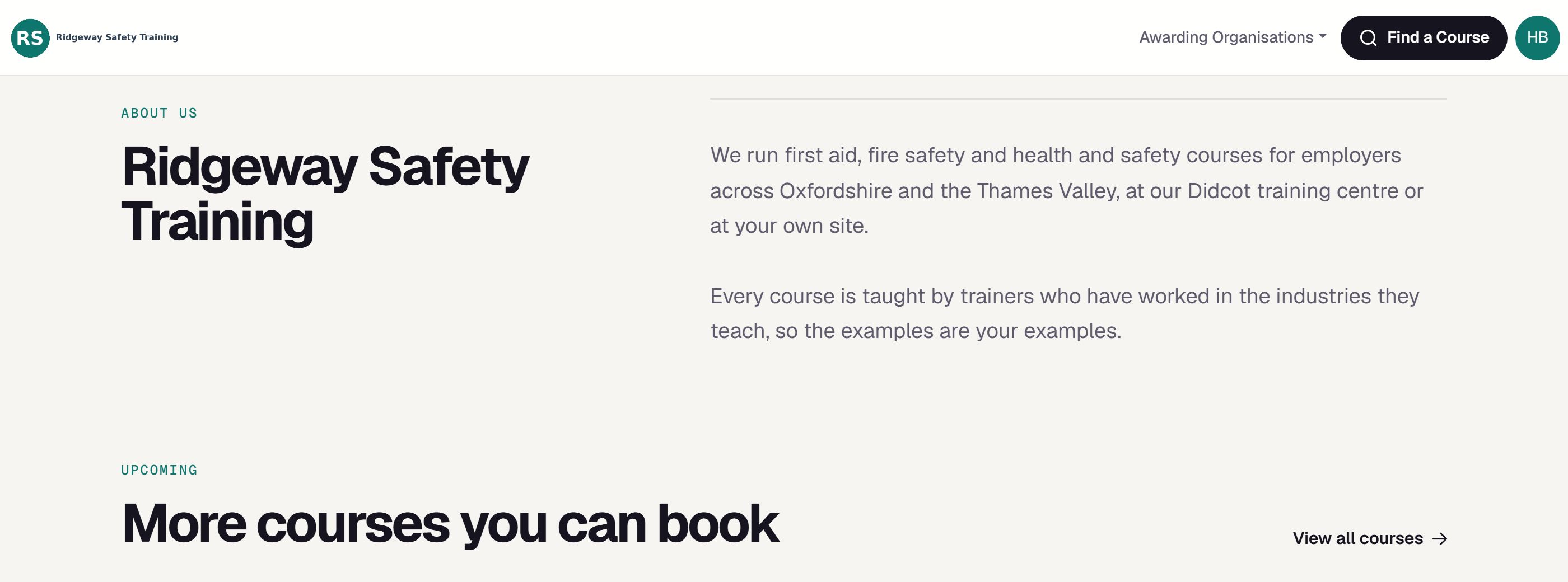
Your booking page now opens on a panel in your brand colour, with a big search box and your Next courses, each with its date, price and places left (amber when only a few are left). Further down are your courses, About us, What attendees say and a directory of your courses by category and awarding body.
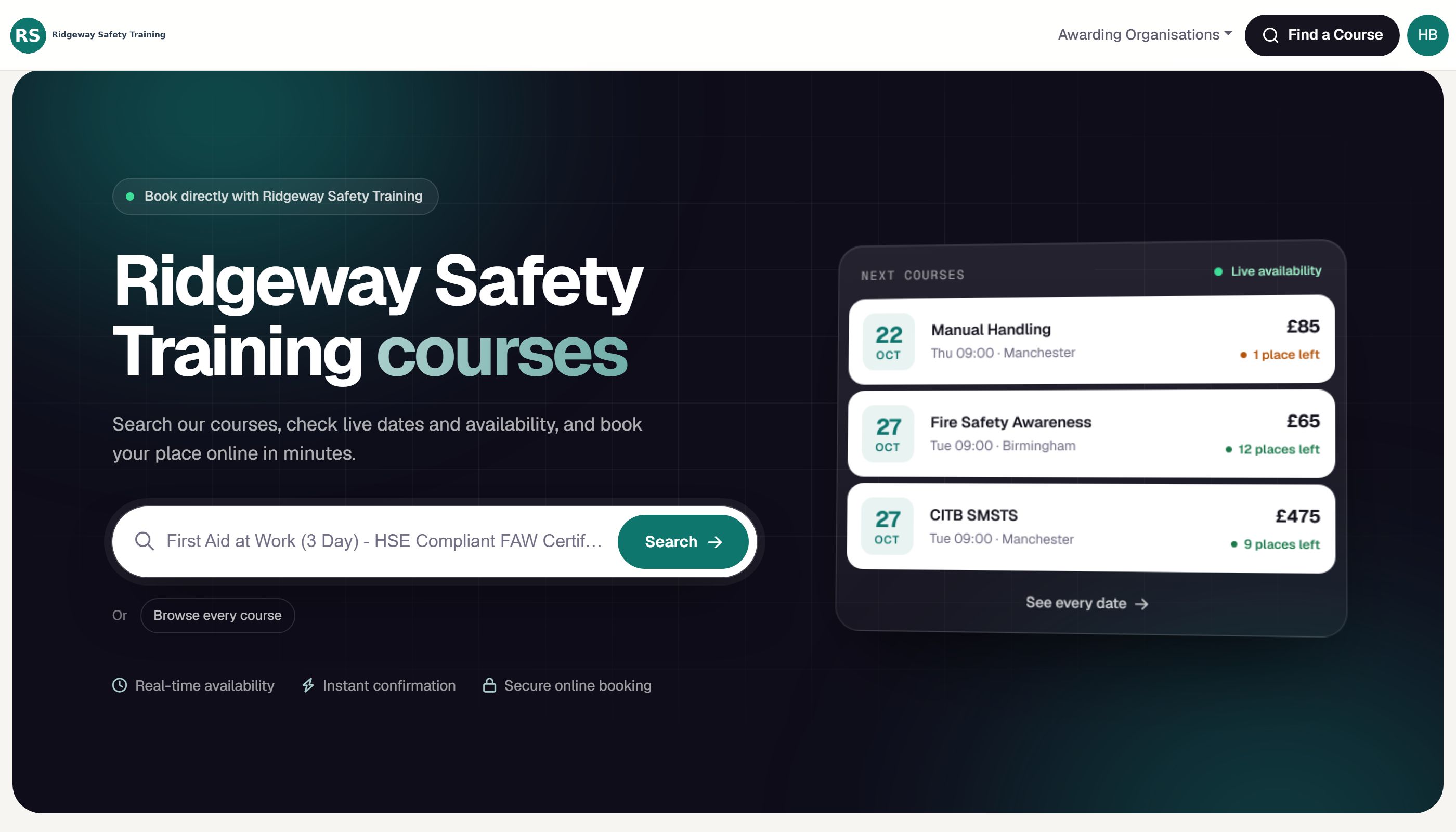
- Course search has quick filters for Classroom, eLearning, This week, Next week, This month, Next 3 months and Near me.
- Course pages show the essentials first, whether places are available, a day-by-day schedule, the venue map and a booking panel that stays in view as you scroll. On a phone, a booking bar sits at the bottom of the screen.
- Group and on-site enquiries. Switch on Show "Ask about group or on-site training" on your CourseCloud pages in Settings > Booking page, and your course pages offer a button that opens your enquiry form with the course already chosen.
Website widgets: your live dates on your own website
Your own website is where most of your customers look first. Website widgets put your live course dates and online booking on it, in your colours, and keep themselves up to date: new dates, prices and places left appear on their own, and full or finished dates drop off.
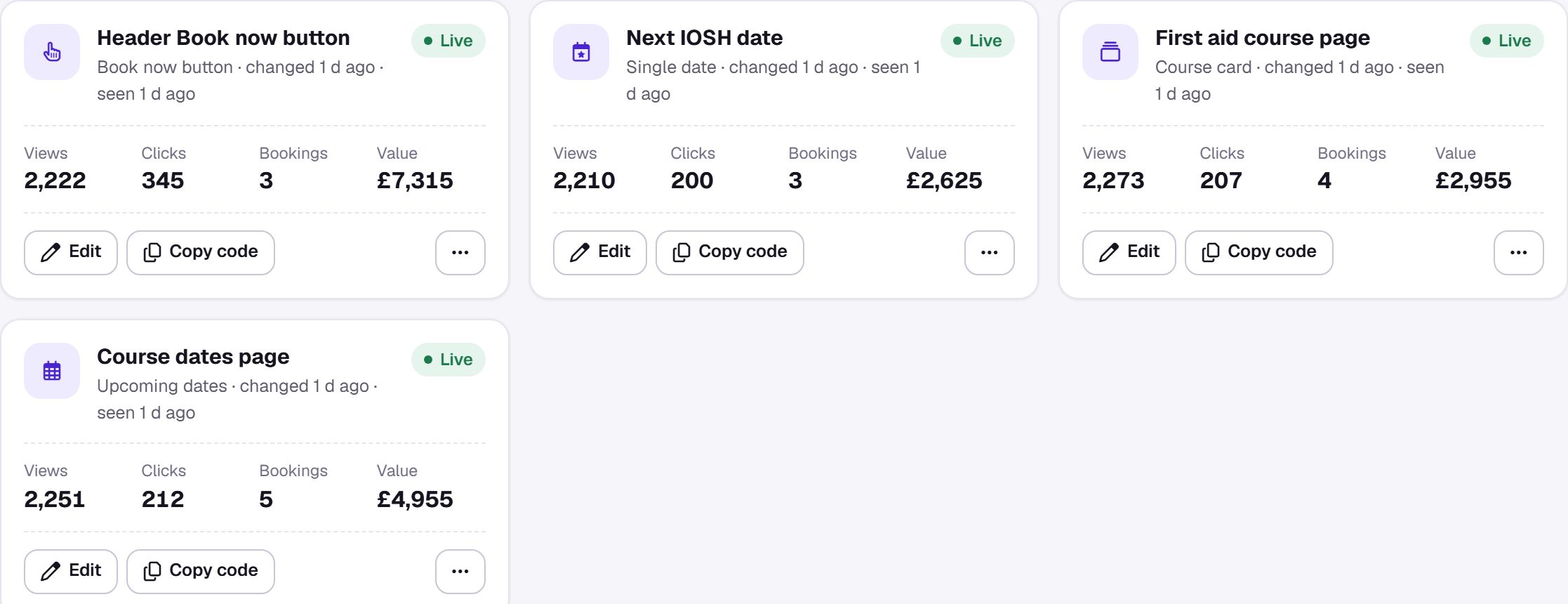
There are four kinds, and you can make as many as you like:
- Upcoming dates. Your next dates with places left and a Book button on each. Show every course, or only the courses, individual dates or venues you choose.
- Course card. One course with its price and next dates, made for that course's page on your website.
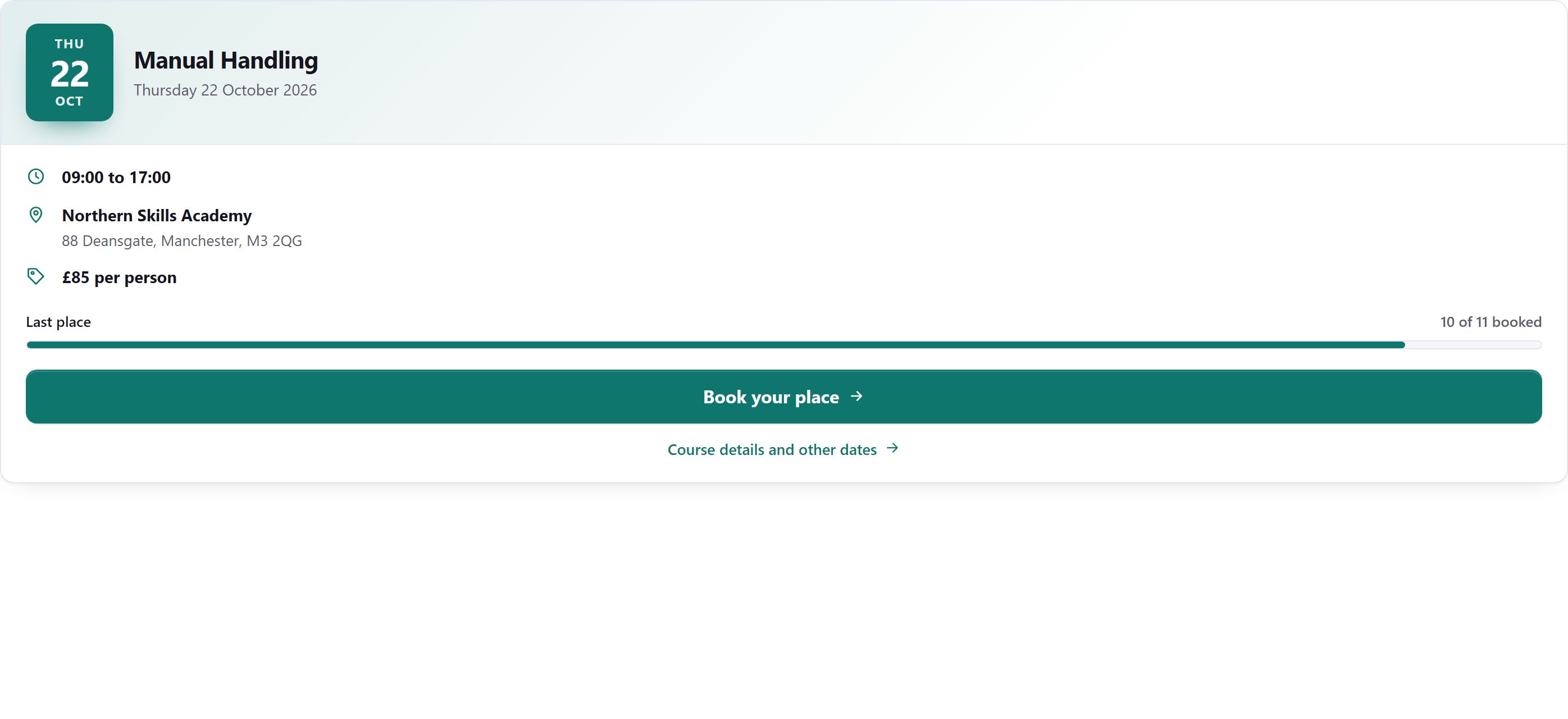
- Single date. One date, front and centre, with the venue, a bar showing how full it is and a big Book your place button. When it fills up or starts, it shows the next date of that course instead.
- Book now button. A button for anywhere on your site. It opens your dates in a pop-up on your own page, or goes straight to your booking page.
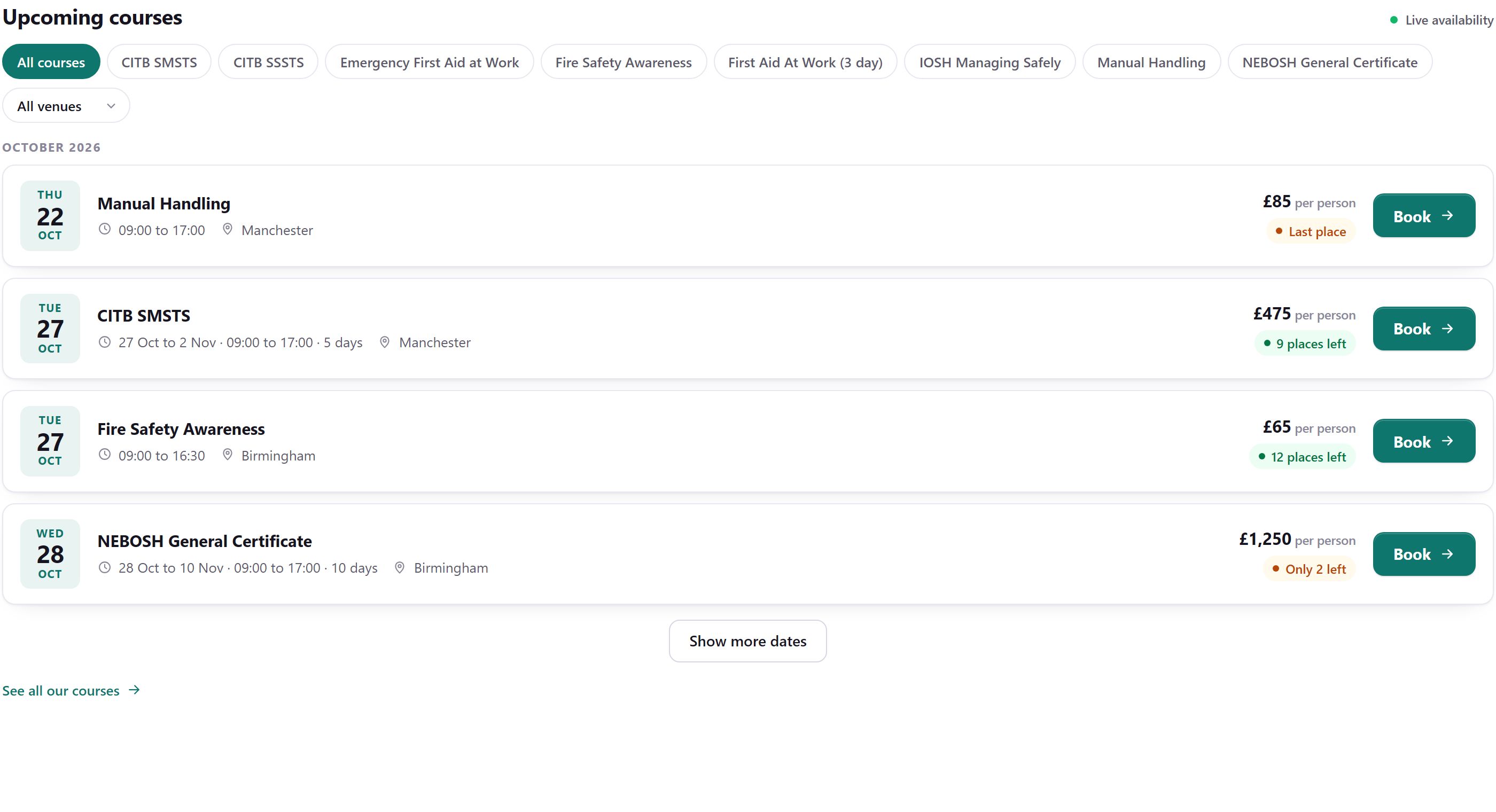
Make it look and work the way you want
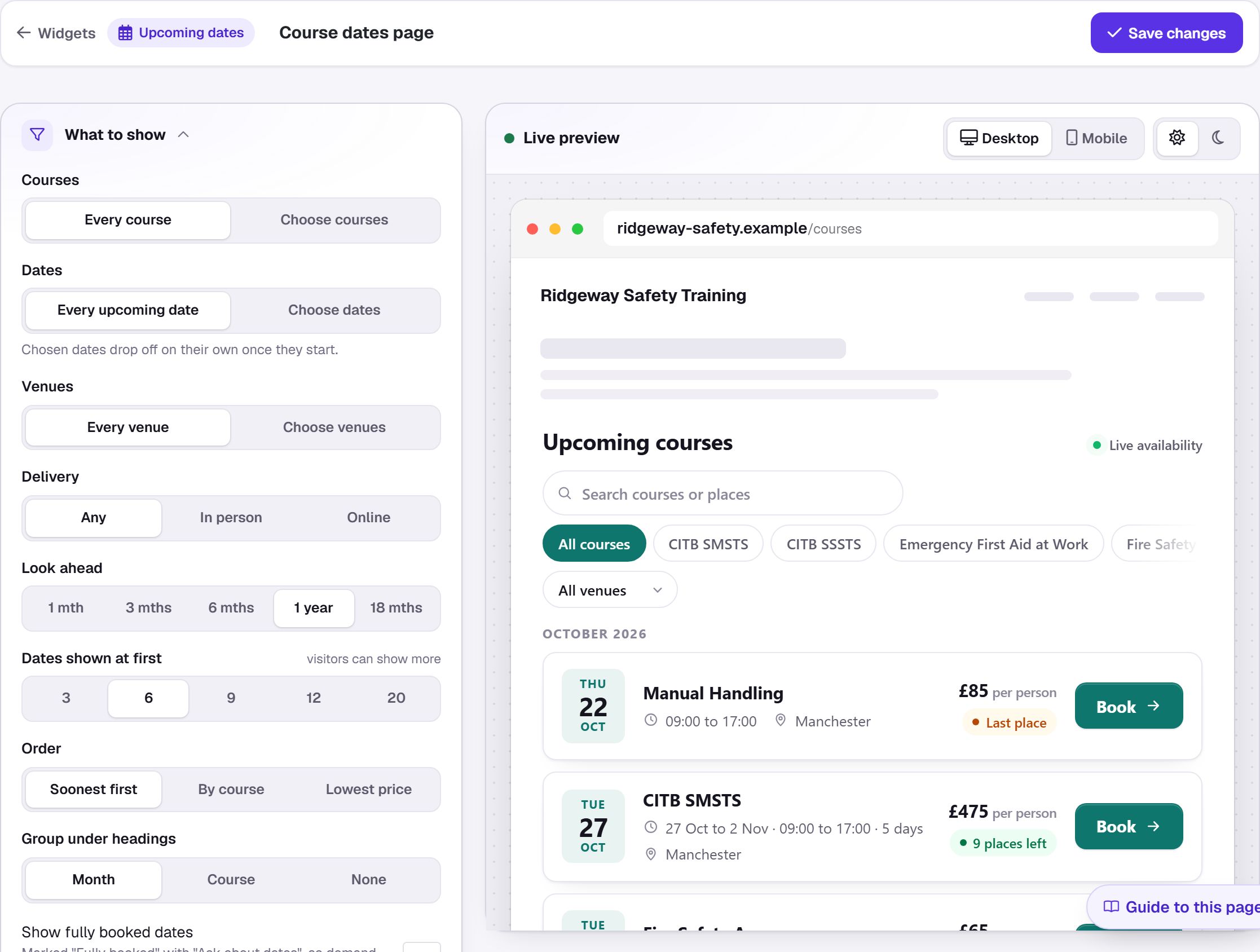
- What to show: courses, dates, venues, a category, in person or online, how far ahead, how many dates show at first, the order (soonest, by course or lowest price) and headings by month or by course.
- Fully booked dates can stay on show, marked Fully booked with Ask about dates, so you still hear from people who missed out.
- Details on each date: price, places left, times, number of days, venue, a course summary and a link to the course details. Switch each one on or off.
- Filters for visitors: by course, venue, delivery and month, and a search box.
- Your words: a heading, an intro, the text on the Book button and what to say when there are no dates.
- Your look: your brand colour or any colour, a list, cards or a compact layout, spacing, light, dark or Match visitor, corners and font. You can even add your own CSS.
A live preview shows the real widget with your real dates as you change it, on a desktop or a phone.
How to add one to your website
- Go to Settings > Website widgets (in the Selling part of the Settings menu) and choose the kind of widget you want.
- Choose what it shows and how it looks, then press Save widget.
- Pick your website builder (WordPress, Wix, Squarespace, Webflow, Shopify or any website) for the steps, then Copy code and paste it into your page. Send to your web person emails the code and the instructions to whoever looks after your site.
From then on, change the widget in CourseCloud and your website shows the change within a minute. You never need to paste the code again. From the list of widgets you can also copy the code, duplicate a widget, pause it (your website shows nothing in its place until you resume it) or remove it.
See what your widgets sell
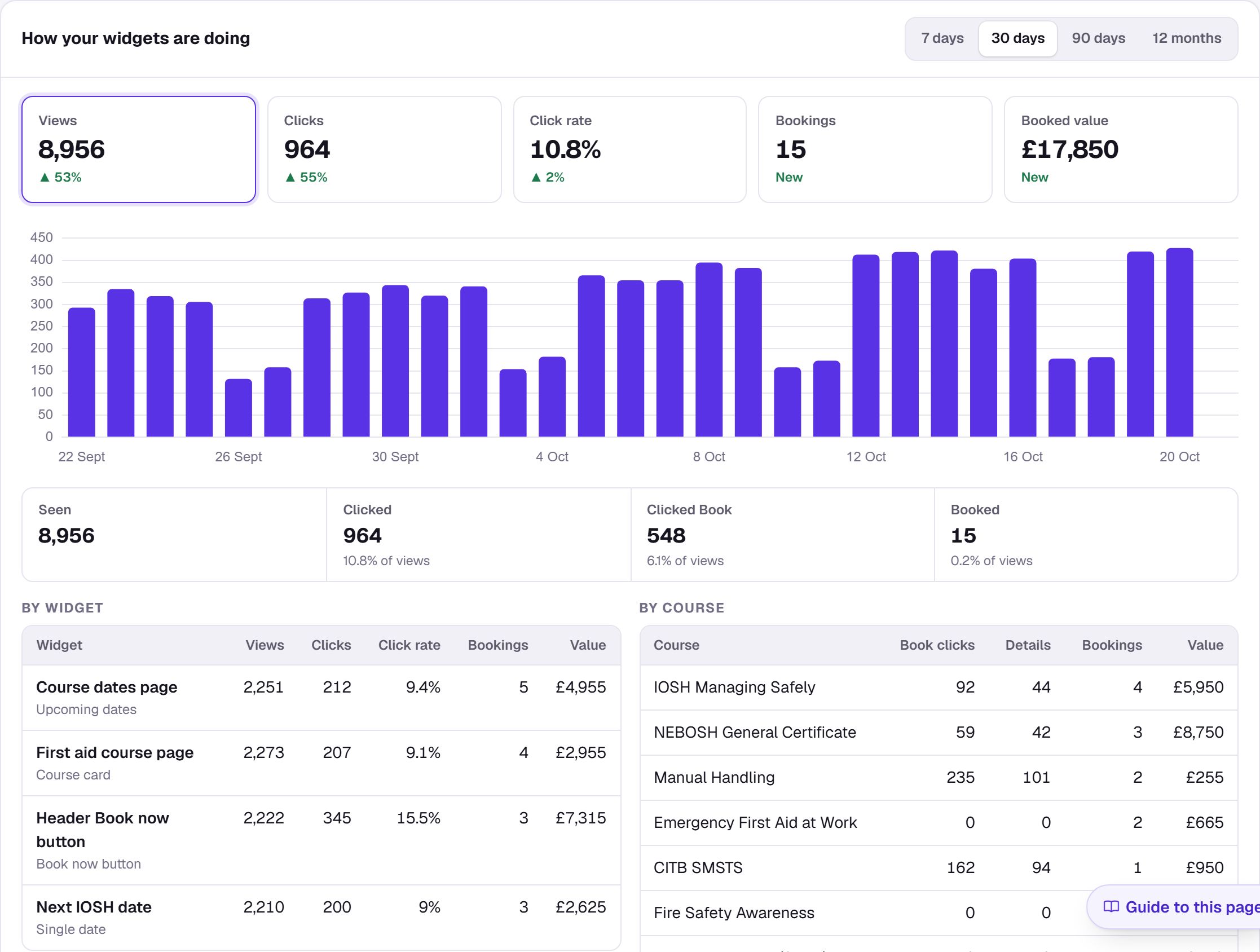
Every widget counts how often it is seen (at least half on screen for a second), what people click and the bookings that follow, with their value before VAT. You can see it by widget, by course and by page of your website, day by day, against the period before. It is on Settings > Website widgets and in Analytics > Widgets.
Booking always opens your own secure CourseCloud checkout, in your branding. If your website ever cannot reach CourseCloud, visitors see a plain link to your booking page instead, so they can always book. Widgets use no cookies, and your dates are added to your page in a form search engines can read.
Website widgets are included in every plan. On the Free plan they carry a small "Bookings by CourseCloud" credit. Your booking page needs to be online for widgets to show on your website; the preview works before that.
Sign up and start selling in minutes
A new training provider can now go from sign-up to a course people can book, without waiting for us.
- One sign-up form. Your name, work email, company and a password, then Create account takes you straight into setup.
- Confirm your email with a code. We email a 6-digit code; enter it in the Confirm your email address banner at the top of every page whenever it suits you. You need to confirm it before you go live.
- Only what you need. Telephone, website, company number, bank details, accounting package and logo are all optional, and you can skip them for now. Your booking terms start from a standard set for training courses that you can edit, and your address becomes your first venue with you as its trainer.
- Courses people can actually book. Getting started only ticks off your first event once the public could book it. If something stops that, it says what and offers Make it bookable, or Keep it private and carry on if you only run courses for your own customers. When you create an event, I'm teaching it makes you the trainer in one click.
- Go live on invoice now, add card payments later. The Go live page now offers Go live now on invoice, so you can take bookings straight away, or Verify with Stripe to take card and invoice. Card payments switch on by themselves once Stripe has verified you.
- Every feature is open while you set up. When you go live, choose Free, Core or Complete. New customers get half price for their first 3 months on a paid plan, and if you chose a plan already, your first payment is taken when you go live.
How to use it
- Sign up, work through setup and skip anything you do not need yet.
- In Getting started, add a course and your first event. Use Make it bookable if it is flagged.
- Enter the 6-digit code from your email in the banner.
- Open Go live and choose Go live now on invoice. Verify with Stripe whenever you are ready to take cards.
A course sold online needs a price per person above zero. Add the price, or switch off online booking for that course.
Set up from your website
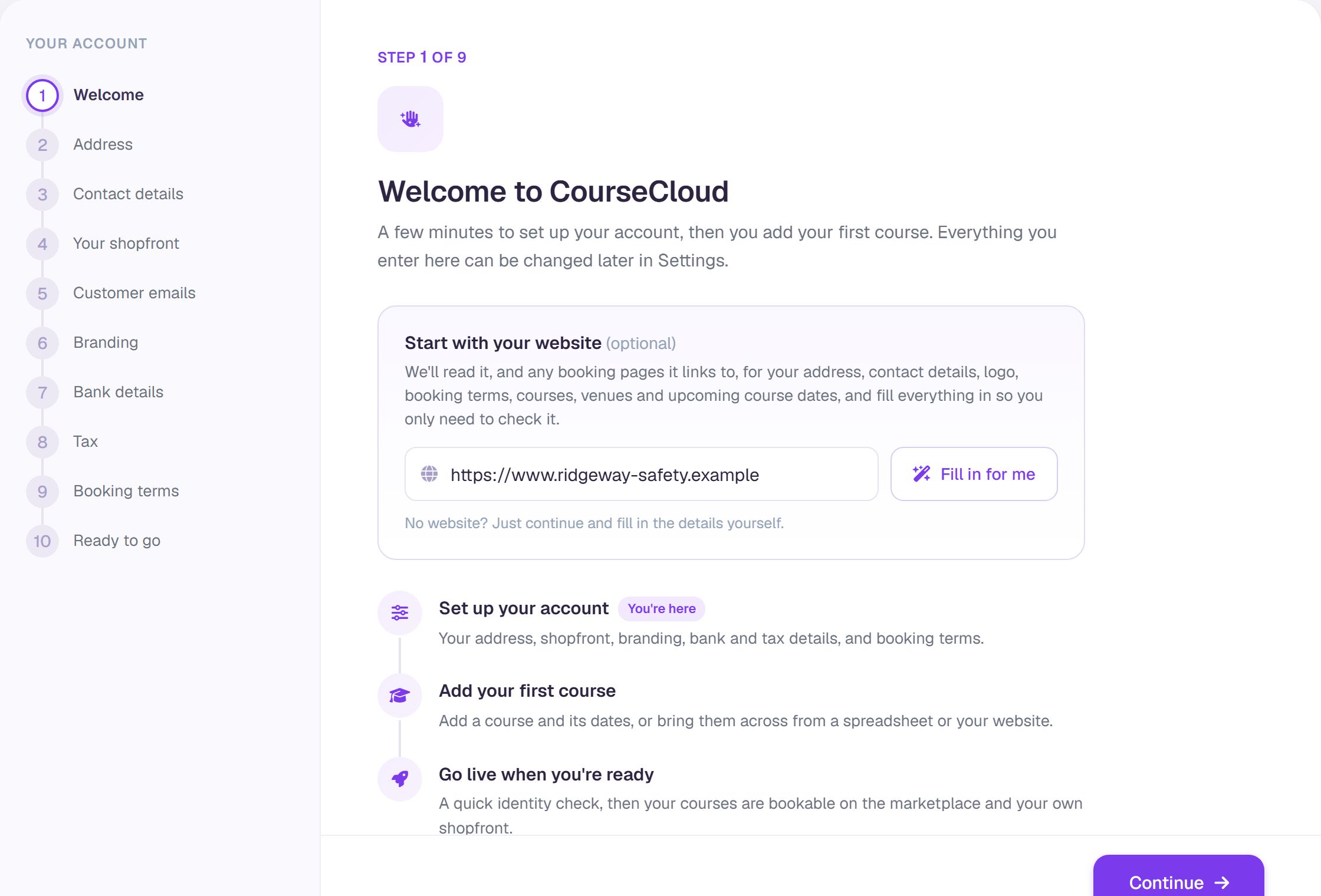
Setting up used to mean typing in details your website already shows. Now the first step of setup asks for your website. Press Fill in for me and we read it, along with any booking pages it links to, and fill in:
- your address, phone number, email for customers, and company and VAT numbers
- your logo and brand colours
- your booking terms, tidied into the editor
- your courses, venues and upcoming course dates, ready to bring in once setup is finished
We only fill in what is still empty, so nothing you have typed is changed. Everything we fill in is marked From your website until you check it or change it. You can carry on through setup while we read.
Bring in your course dates from your website
If your website lists your upcoming course dates, or links to the booking pages where you sell them, we can bring those dates into CourseCloud as events, each on the right course with its times, venue and price where your website shows them. Only upcoming dates come across, and nothing goes on sale until you switch on online booking.
- Go to Events and press Import.
- Under From your website, check your website address and press Scan.
- Review the dates, untick any you do not want, and import them. Dates you already have are skipped.
An "About us" on your booking page
Your booking page can now show a short About us in your own words. Search engines use it to describe your page too. If you started with your website in setup, we have written a first version for you to check. Change it in Settings > Booking page, under About your business.
Bring all your data in, and take it out
Import everything, not just courses
Moving from spreadsheets, a CRM or another booking system? Settings > Import data brings everything across: courses, venues and trainers, and now customers and their contacts, learners, events, attendance (bookings, results and the register) and training records.
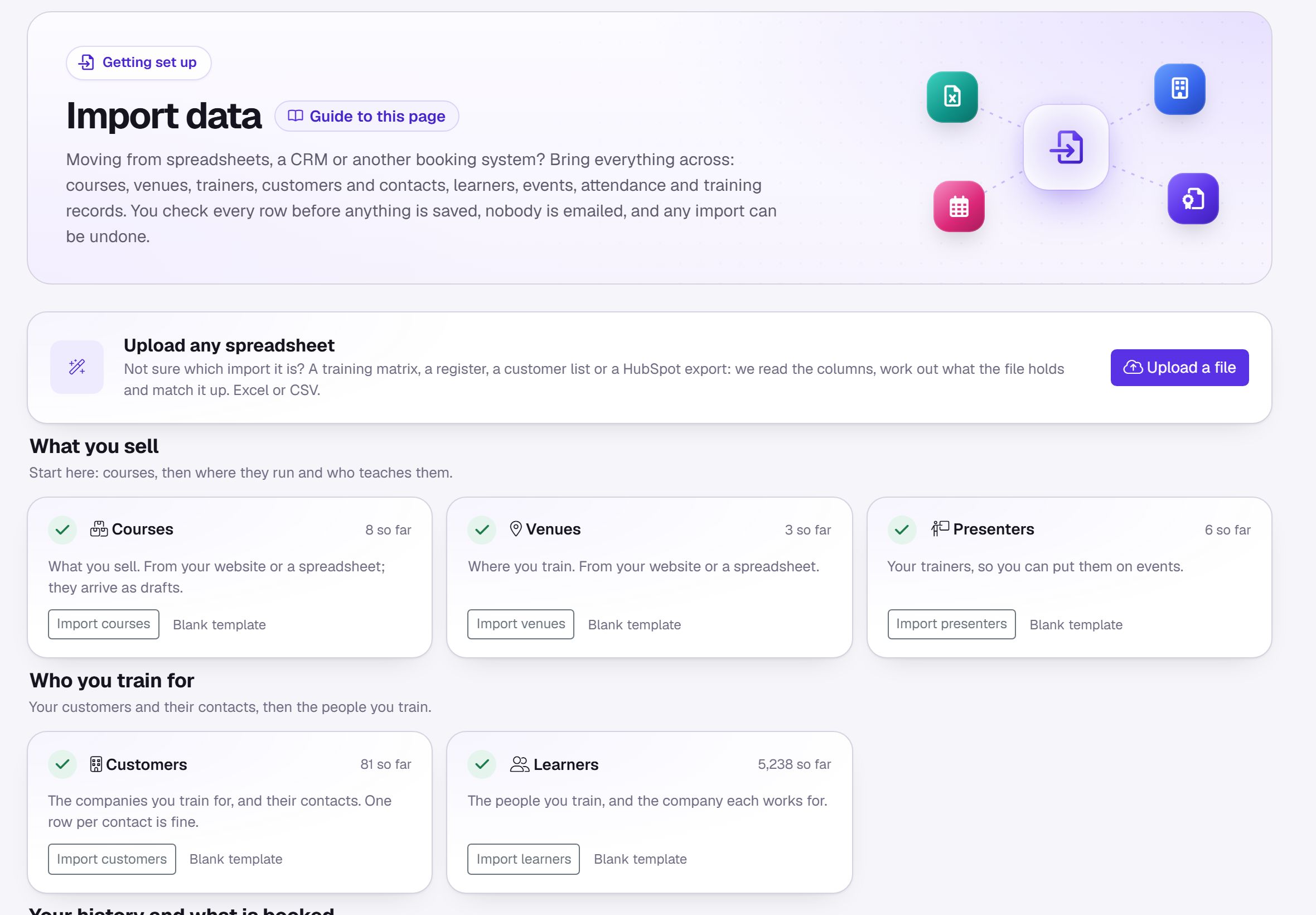
- Go to Settings > Import data. Not sure which import a file is? Use Upload any spreadsheet and we work out what it holds. Excel and CSV both work, and exports from HubSpot, Xero, Sage, Mailchimp, Eventbrite and Arlo are recognised as they are.
- Check the preview. Every row shows whether it is new, already there or needs fixing, and you can fix it there and then.
- Import the rows you want. Anything a row needs that is not there yet, such as a customer or a venue, is created on the way.
Imported history is just that: nobody is emailed, nobody gets a login, imported bookings are treated as settled and are never invoiced, and imported records do not count towards your plan. You can undo a whole import, and anything you have started using is kept. The getting-started steps also offer an import at each stage.
Straight from HubSpot, Mailchimp and Eventbrite
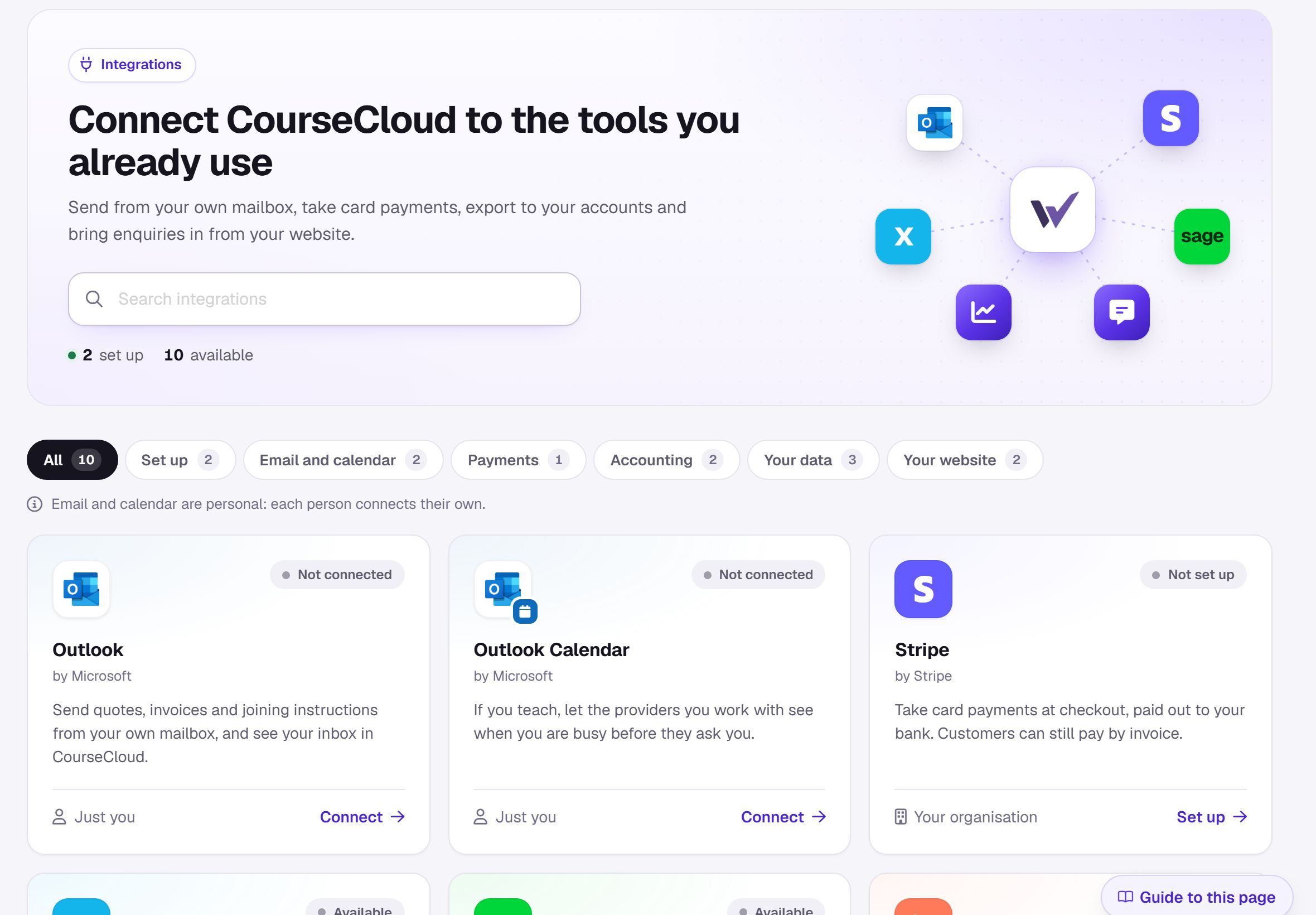
In the import window, choose From HubSpot, From Mailchimp or From Eventbrite and paste a key from your own account. HubSpot contacts and companies, a Mailchimp audience (only people still subscribed) or your Eventbrite events with their attendees come straight in, through the same preview and undo. Your key is used for that one read and never kept, and nothing changes in the other tool. These appear in Settings > Integrations under Your data.
Export any table, and choose the columns
Every table in your portal can be downloaded as a CSV file that opens in Excel, Google Sheets or Numbers, with every row that matches your search and filters.
- Open any table, for example Records, Customers or People, and search or filter it.
- Click the ⋯ menu at the top of the table and choose Export CSV.
- Pick the columns you want. More columns adds details the table does not show, such as email, mobile and address.
A file you export from CourseCloud now imports straight back in. Contact exports show each contact's customer, and attendee exports have a Result column (Passed, Failed or Absent). Your choice of columns is remembered for each table. While someone has not yet approved sharing their Workpass profile with you, their private details are left blank in exports.
Exports are now yours to control. Your super admins can export straight away, and in Settings > Users, under Who can export, a super admin can choose Super admins only or All staff. National Insurance numbers only ever appear in a super admin's export, and every export is recorded.
Download certificate PDFs in bulk
Go to Records, tick the certificates you want (or Select all matching) and click Download PDFs. You get a ZIP file with each certificate named by person, course and date, filed into year and month folders.
Plans that grow with you: Free, Core and add-ons
CourseCloud now starts free and grows with you. You pay a monthly price for your size, and only add the extras you want.
- Free. For up to 25 people trained a year, with no subscription and no card needed. Card payments at checkout carry a higher fee, and your booking page shows a small CourseCloud credit.
- Core. Everything you need to run and sell your training, priced by the number of people you train a year. Paying yearly costs ten months' price.
- Add-ons, each on top of Core and each priced by your size too: Marketing, Autopilot, Insights, Trainer app, Course builder and Website.
- Complete. Core with every add-on, for a third less than buying all six. If the add-ons you pick would cost as much as Complete, you get Complete instead.
Settings > Billing shows the price for your size before you choose, and Recommended for you suggests the plan and add-ons that fit what you actually use. New customers get half price for their first 3 months. If you go live without choosing a plan, you are on Free and your booking page stays online. If you outgrow Free (more than 25 people trained in the last 12 months, with a little headroom), we tell you, and you have 14 days to choose Core before your courses go offline.
What each plan includes
- Free and Core: your marketplace listing and booking page, checkout, bookings and quotes, eLearning delivery and uploading SCORM courses, certificates and the certificate designer, reselling other providers' courses, reviews, exports, core analytics, website widgets, Hey CourseCloud, reminders for you and your team, the website enquiry form and enquiry routing, your Outlook inbox and trainer calendars, custom fields and tags, Revenue Radar and Who's who.
- Marketing add-on: email campaigns, segments, automated follow-ups and landing pages.
- Autopilot add-on: Will it run? and Events at risk, renewal autopilot, Cash & credit and the late-payer hold, trainer cover, the automatic options in Settings > Automations, and having CourseCloud read an email into a lead. It also gives you a bigger Hey CourseCloud allowance.
- Insights add-on: the Customers, Trainers, Visitor journey, Marketplace, Search visibility and Website analytics, account health and Needs attention, and Won and lost quotes.
- Trainer app add-on: the trainer app, room QR check-in and the trainers' calendar link.
- Course builder add-on: build your own eLearning and SCORM courses, with AI that drafts lessons and quizzes from your slides.
- Website add-on: publish your own website, built in Settings > Website builder, with a blog. Building and previewing it is open to everyone.
Each size includes space for your eLearning, shown in Settings > Billing.
There is no setup fee. If you would like our team to work with you to get set up, add Guided onboarding when you choose your plan, or book it later from Settings > Billing. It is a one-off price for your size, and included with Complete paid annually.
Change your plan yourself
Settings > Billing now shows your whole subscription in five tabs: Plan (your plan and size, the current period and renewal date, your next payment, how you pay and what your plan includes), Change plan, Invoices (click one for its lines), Usage (people trained, month by month, and the size that fits you) and How billing works.
- Go to Settings > Billing and open Change plan (Choose a plan if you do not have one yet).
- Pick a size and any add-ons. An upgrade starts straight away and you pay only the difference for the rest of the period. Moving down, or switching between monthly and yearly, happens at your renewal, and you can change your mind until then.
- To stop, choose Cancel subscription. Everything keeps working until the end of the period you have paid for, and Keep my subscription undoes it.
Your price is protected: choose a plan by 30 April 2027 and you keep that price for 2 years (otherwise for 12 months), and after that a higher list price only applies once we have emailed you at least 30 days before. If list prices go down, you get the lower price straight away.
Payments are taken automatically by card or Direct Debit, and every payment has an invoice, emailed to your billing email and listed under Invoices. If a payment does not go through, we email you and try again after 3 and 7 days; update your payment method and we try straight away. There are no refunds: you pay for the term you agreed, a year at a time if you pay annually or a month at a time if you pay monthly. How billing works on the Billing page sets all this out in plain words.
Any feature your plan does not include now says plainly what it is, what it costs and how to add it, with a link that takes you straight to the right add-on in Settings > Billing.
If you are on Basic, Standard or Premium, or you joined before plans were introduced, nothing changes for now: your plan, your features and your price stay as they are, and if we invoice you today, that carries on. You can switch to card or Direct Debit from Settings > Billing whenever you like. When our team moves your account to the new billing, we email you; you then add a card or Direct Debit by the date shown, or the account becomes read-only (you can still see and export everything) until you do.
Sort your account out yourself
- Choose or change your plan in Settings > Billing, even if you pay by invoice today or are on an older plan. Choosing a plan moves you to automatic card or Direct Debit payments once you confirm.
- Pay what you owe from the You owe card, without waiting for an invoice email.
- Ask us about your plan sends us your question from the Billing page, for an agreed price, more than 5,000 people a year, or anything else.
- If your account was paused or made read-only because of a payment, paying brings everything back straight away, including your courses on sale. An inactive account offers Reactivate and go to Billing.
Your business on autopilot
CourseCloud now does a lot of the day-to-day checking for you. Everything that would act on its own is switched off until you turn it on, and each setting explains what it does, where you will find it and what your customers see.
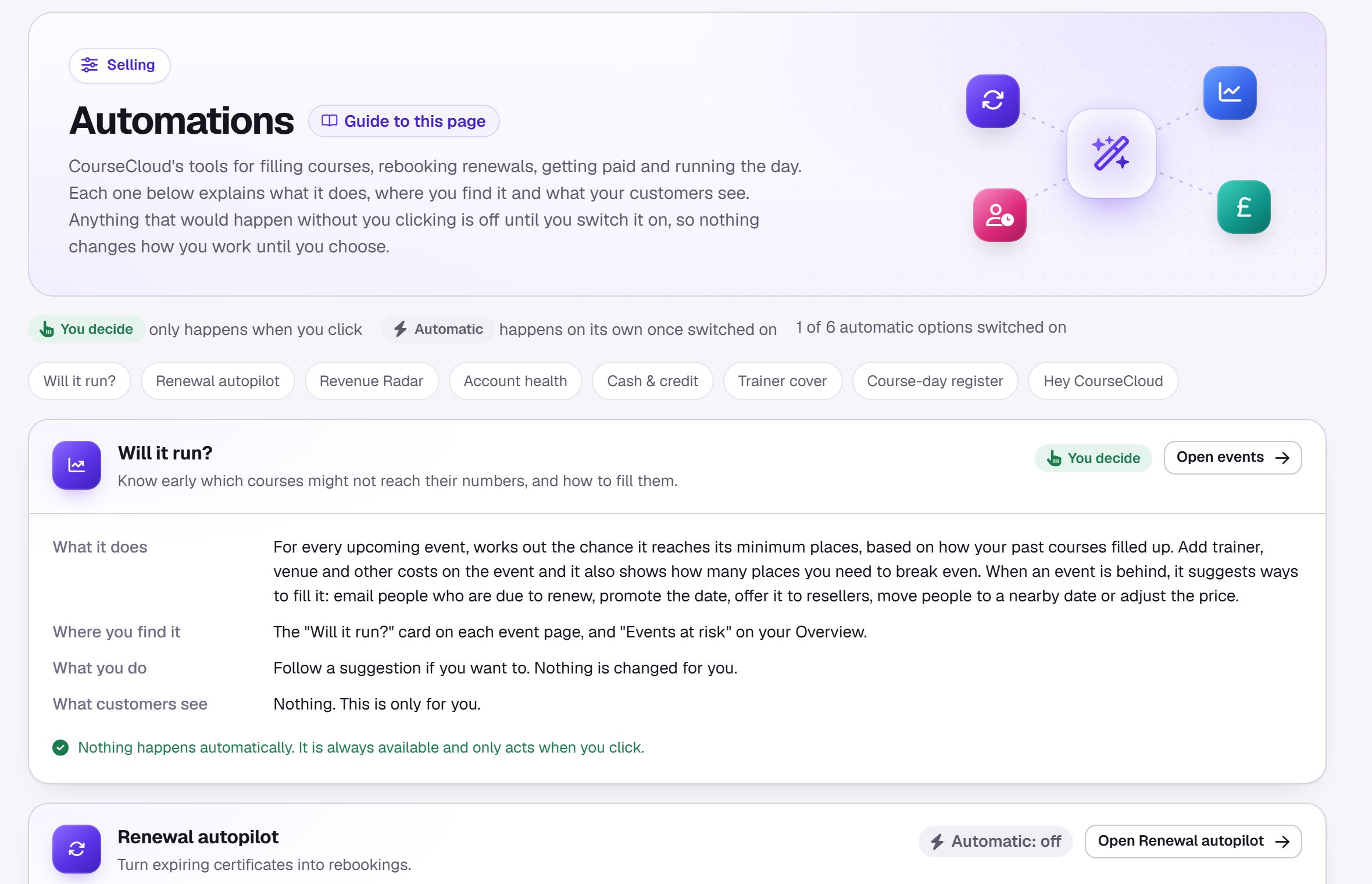
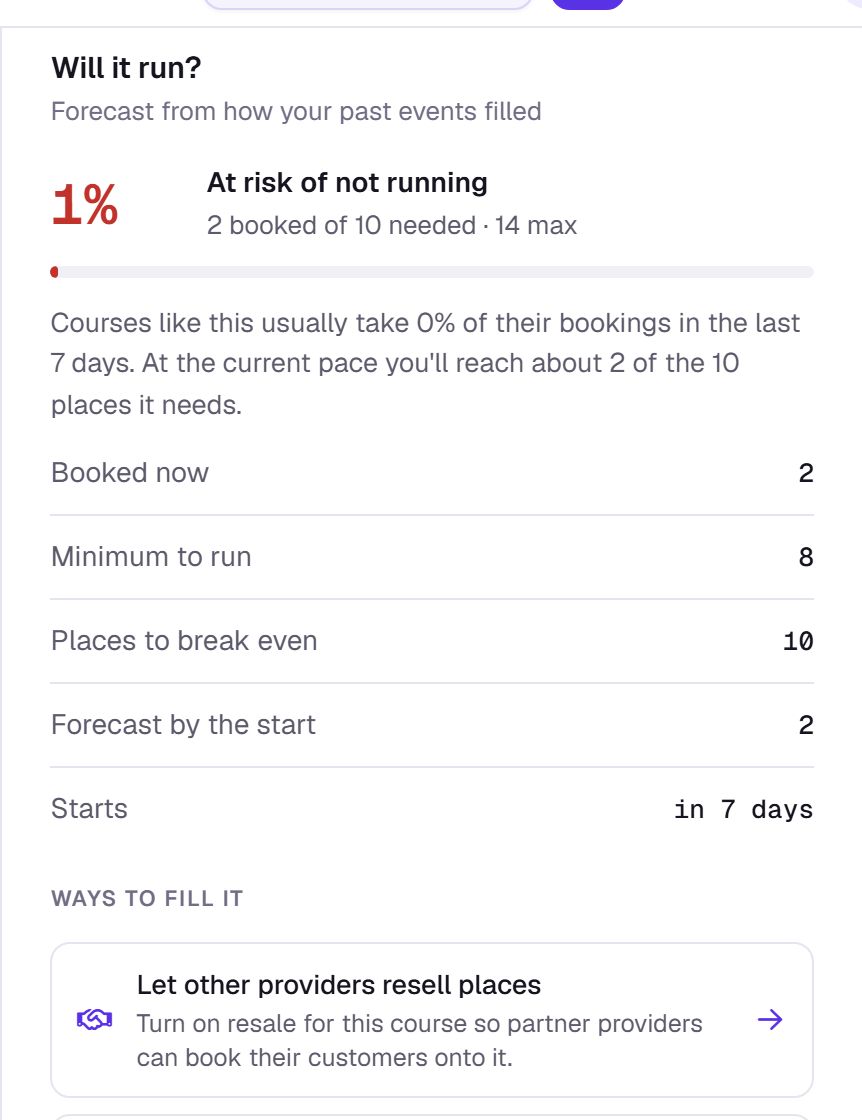
- Will it run? Each event shows how likely it is to reach its minimum numbers, based on how your past courses filled, so you can promote it or move it in good time. Add your trainer and venue costs and it shows how many places you need to break even.
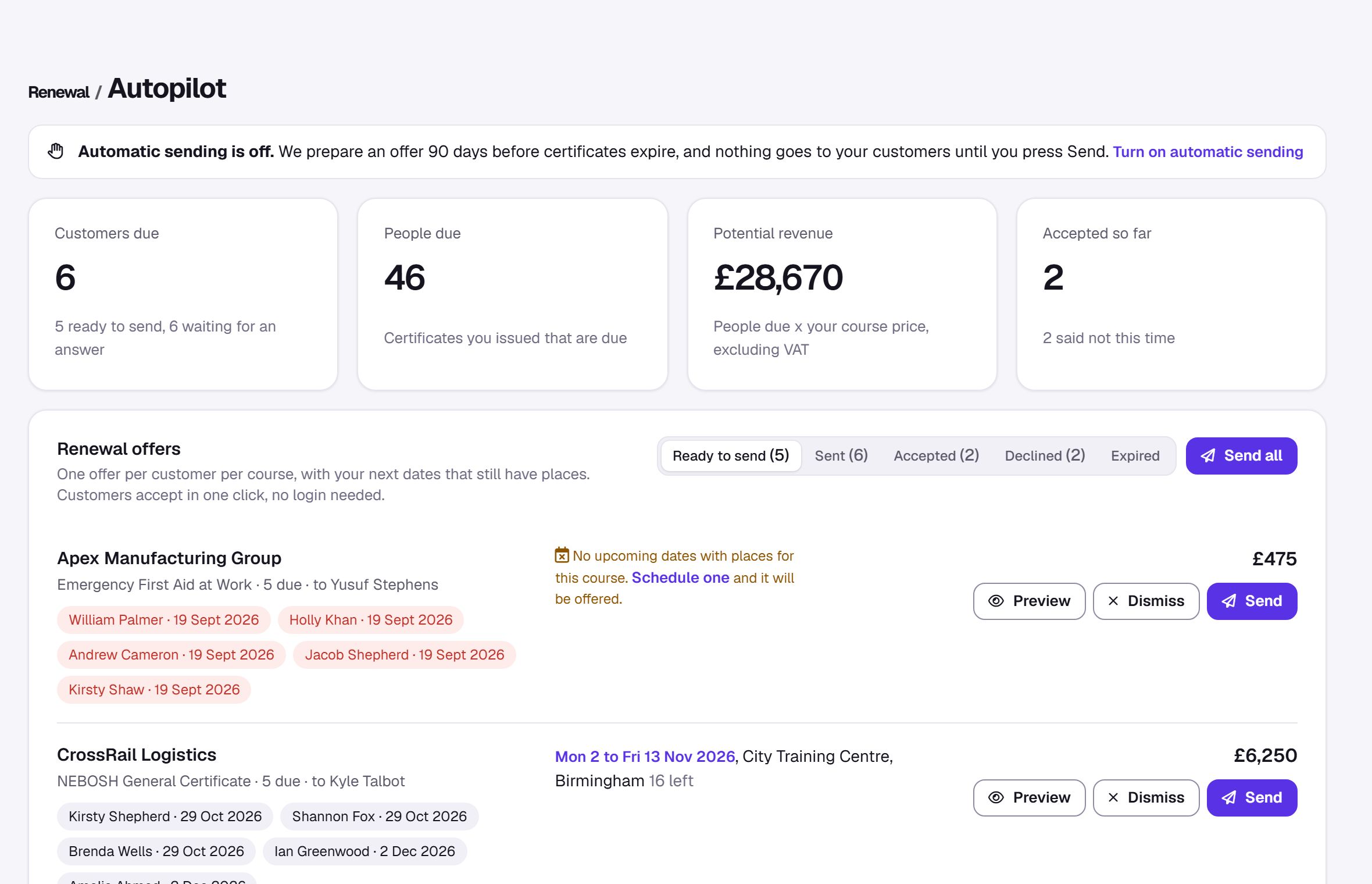
- Renewal autopilot. Spots certificates that are due to expire and prepares a renewal offer for the customer, with your next dates. Customers accept in one click, with no login. You can send each offer yourself, or let CourseCloud send them.
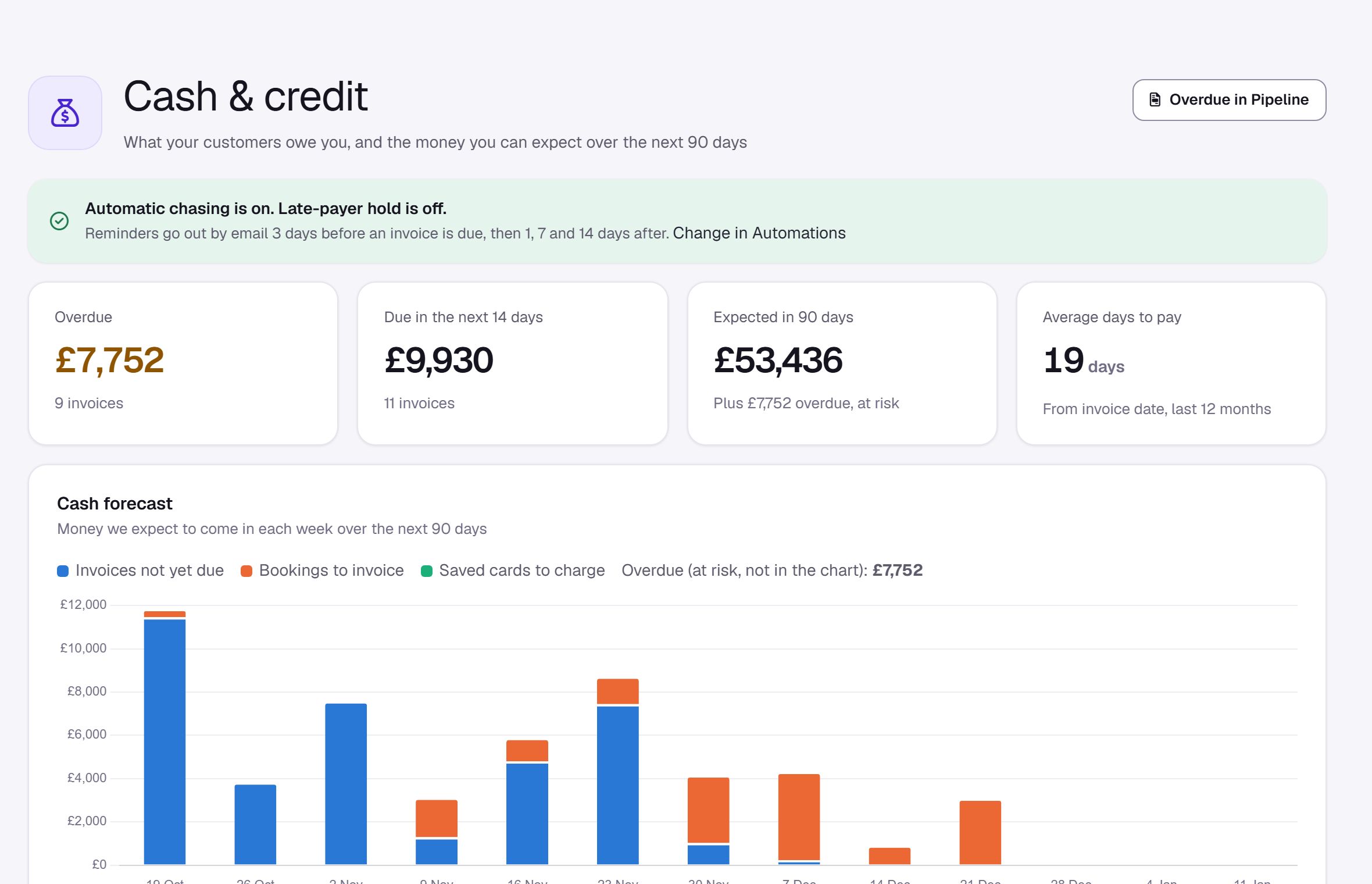
- Cash & credit. A 90-day cash forecast, every unpaid invoice in one list, and automatic payment reminders if you want them.
- Late-payer hold. If you switch it on, customers whose invoices are overdue are asked to pay by card for new bookings, or their booking is sent to you to approve. Nobody is turned away, and you can mark any customer as Always allow invoice.
- Trainer cover. When a trainer is off, choose Trainer can't make it? on the event and CourseCloud finds trainers who can deliver that course and are free, including time off recorded in Workprove.
- Events at risk. A card on your Overview lists courses in the next 60 days that might not reach their minimum, with the chance of each one running.
- Course-day register. Take the register on the day, with signatures, ID checks and results, from the event page, then issue certificates and download an Audit pack. Each delegate shows whether they have Workpass, and Notify learners in Workpass sends each certificate straight to their phone.
- Revenue Radar drafts. Switch on Draft group quotes automatically and, each night, a customer with three or more people due to renew the same course in the next 90 days gets a draft group quote on your next date, with a reminder for their account manager to check it. Drafts are never sent.
- Health alerts. Switch on Tell account managers when a customer's health drops and the account manager gets a reminder when a customer's health falls sharply. Customers are never contacted.
How to set it up
- Go to Settings > Automations.
- Each feature has its own card. You decide means it only happens when you click. Automatic means it happens on its own once you switch it on.
- Switch on the automatic options you want, such as Send renewal offers automatically, Chase unpaid invoices automatically or Late-payer hold.
Only your super admin can change these switches. Every automatic option is off until it is switched on, and switching one on first shows you what would happen. Will it run?, renewal autopilot, Cash & credit, trainer cover and the automatic options are in the Autopilot add-on; the register is in every plan.
A trainer app, and QR codes for your rooms
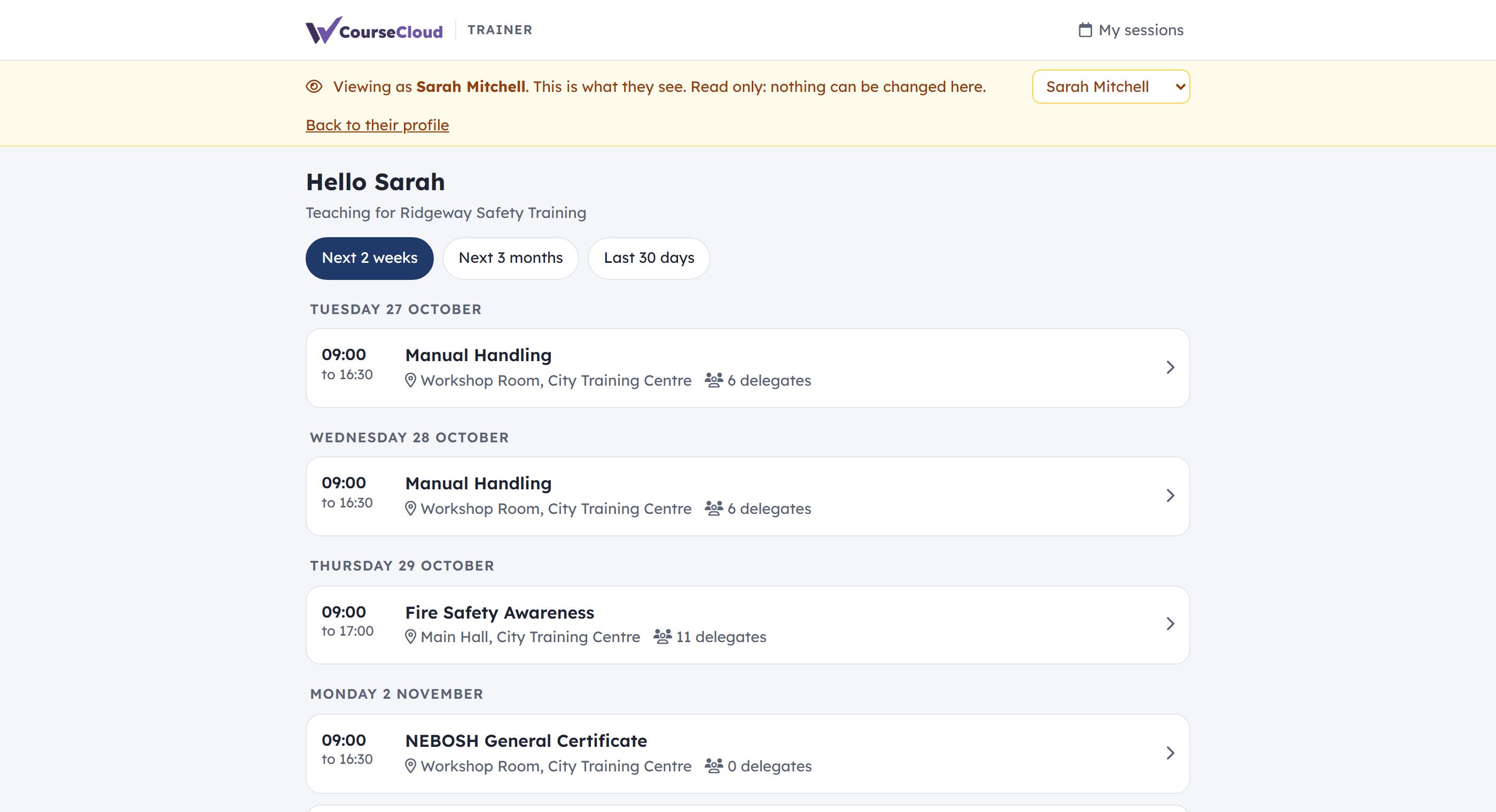
Your trainers can now sign in to their own app to see their sessions, take the register, read the course information and launch course files on the day. They only ever see their own sessions and the people on them.
Each room can have a printed QR code. Delegates scan it, find their name and sign in on their phone, and the trainer confirms them. They can also set up Workpass, the free learner app, so their certificate lands on their phone.
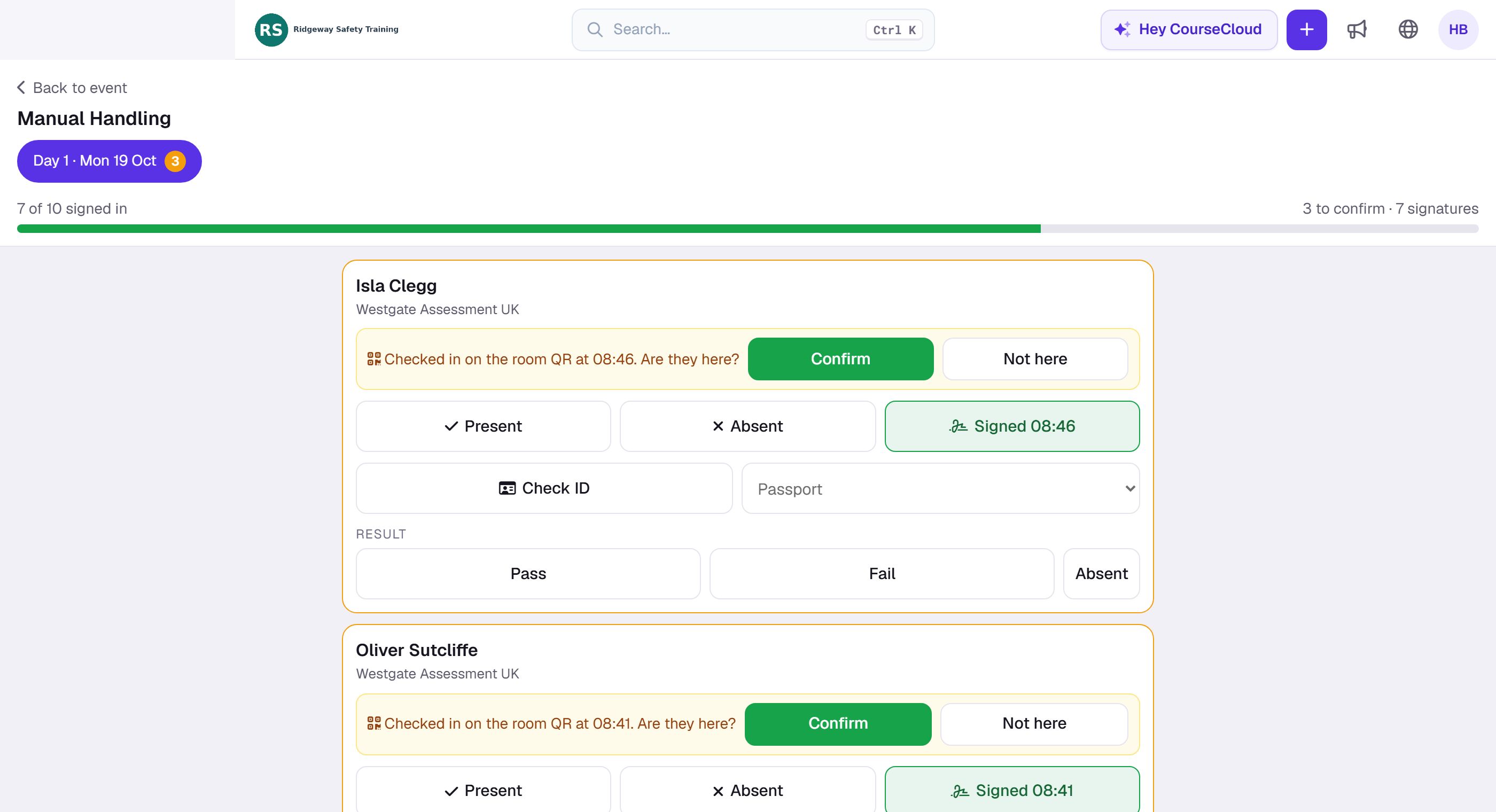
How to set it up
- Go to Settings > Trainers and switch on Trainer app. Use More settings to let trainers issue certificates and to View as trainer.
- Open a trainer and press Send invite. They get an email to set up their sign-in.
- How the trainer app works, on the Trainers page, shows exactly what your trainers will see.
- For room QR codes, go to Settings > Locations, open a location, and choose QR code next to a room. Print the poster and put it up by the door.
The trainer app and room QR codes are in the Trainer app add-on. Room QR codes only work while the trainer app is switched on.
Training partnerships: close your customers' training gaps together
When a customer uses Workprove to manage their team's training, you can ask them to share it with you. Your customer decides what you see and for how long: unless they choose otherwise, you see only the people you have booked or trained, for 12 months. You only ever see training records, never health checks or documents, they can stop sharing at any time, and each time you look at their people in Revenue Radar it shows on their partnership activity list. Other providers never see your plans or prices. Once they share, the gap board shows their compliance, the gaps to close, what is running out soon and what is already booked, with your next dates.
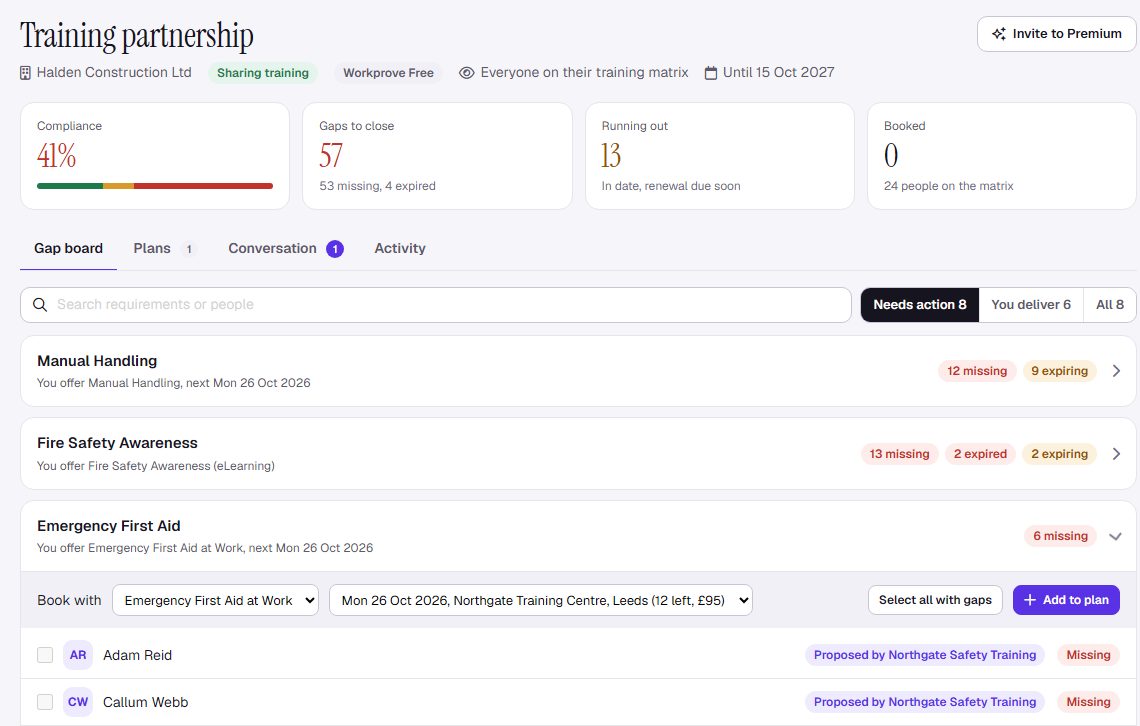
How to use it
- Go to Customers, open the customer, and open the partnership page from the Training partnership banner.
- Click Ask to work together, add a note if you like, and Send request.
- Once they share, open a requirement, choose Book with, tick the people, Add to plan, then Review plan and send it. Your customer clicks Accept and book and the bookings appear in your pipeline.
Customers on Workprove Free see the training you issue through CourseCloud on their matrix at no cost to them. The old customer training matrix page now opens the partnership page instead.
Each partnership has a Conversation tab, so you and your customer can ask questions and agree dates in one place.
On the partnership page, Invite to Premium offers your customer a free 30-day trial of Workprove Premium. If they subscribe within 12 months, £100 is added to your CourseCloud account credit. Refer and earn lists each invitation and where it has got to: sent, opened, on a free trial or subscribed.
Win more work: Revenue Radar, quotes and customer health
Revenue Radar
Radar in the sidebar shows, for each customer, the training they will need in the next 3, 6 or 12 months, valued at your prices: certificates you issued that are running out, your courses their people did elsewhere that are due again, and new starters with no training. The last two only show for customers who share their whole team with you. Press Draft group quote, pick a date, and a draft quote with those people named lands in your Pipeline. Nothing is sent from this page. Each customer page also has a Demand in this account card with the places due, their value and the first due date.
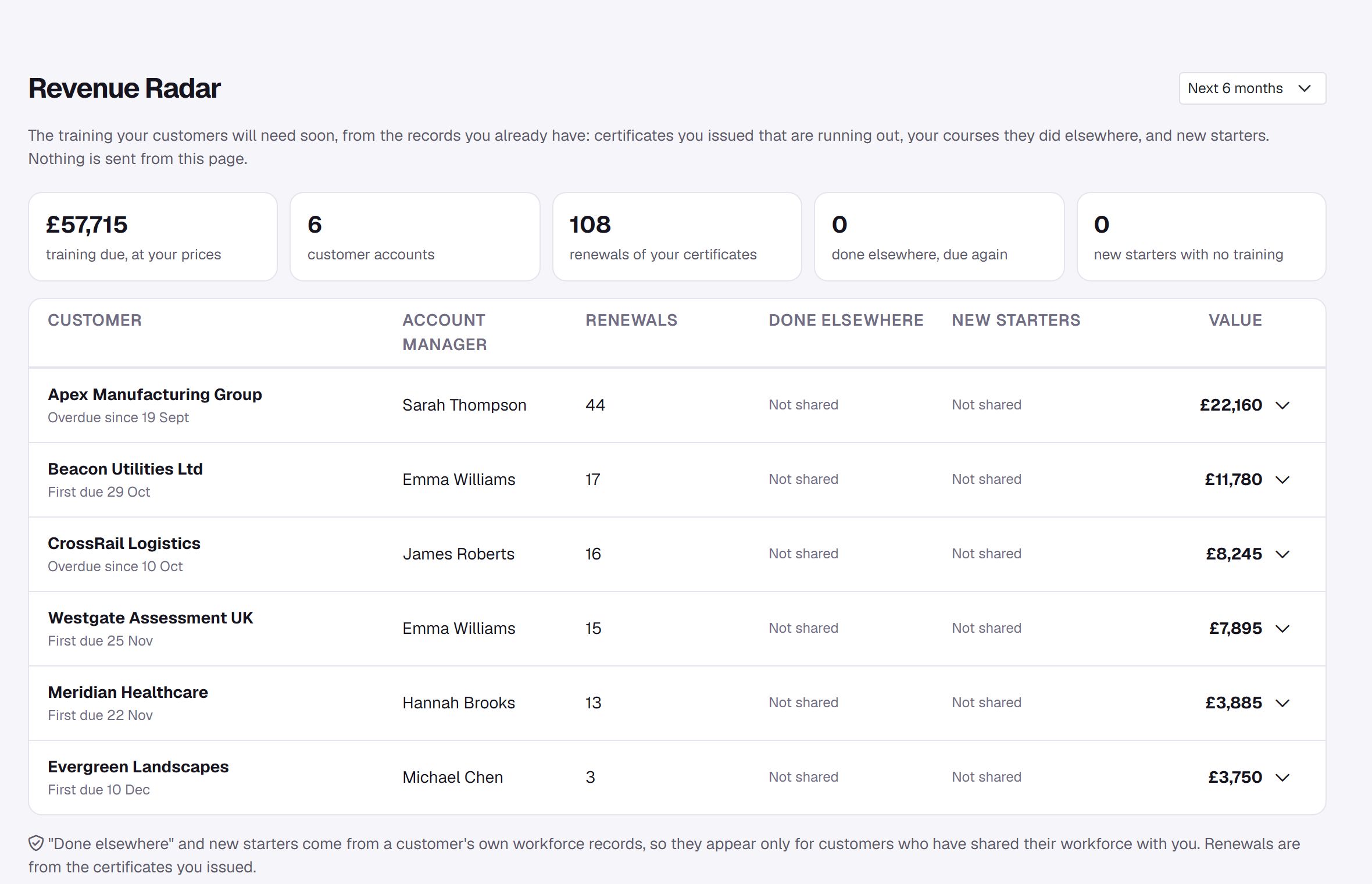
Quotes that follow themselves up
- Create quotation starts with "Who is the quote for?": search your customers, leads and contacts, or add a new one there and then.
- The quote page shows when the customer opened it, how often and whether they downloaded the PDF, and keeps every version you sent behind Show versions.
- A Follow-up card says who is chasing the quote and when. If a quote is lost, choose Quote lost? and record why (price, dates, chose another provider and so on).
- Optional, in Settings > Sales: quotes that expire, an alert when a customer first opens a quote, and approval for large discounts.
- Won and lost quotes shows your win rate, value won and lost, time to win and why quotes are lost.
Know which customers need you
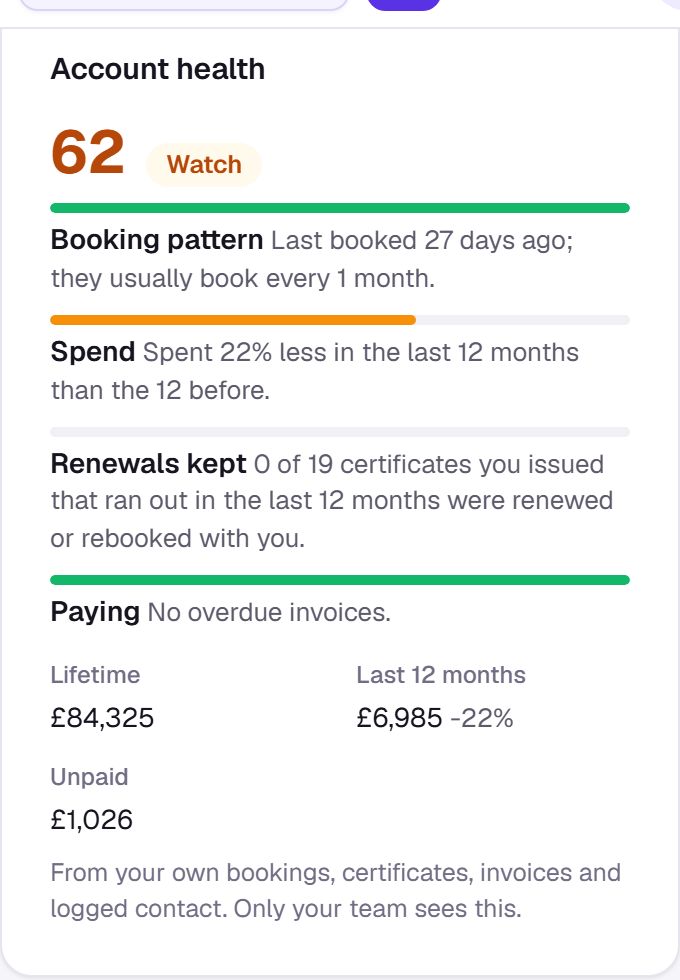
- Customer pages are rebuilt. Revenue, what is outstanding, bookings and people trained sit at the top, with the customer's health, next renewal and last contact. Below are their sales by month, quarter or year, bookings, renewals due, emails, timeline, training records and top courses.
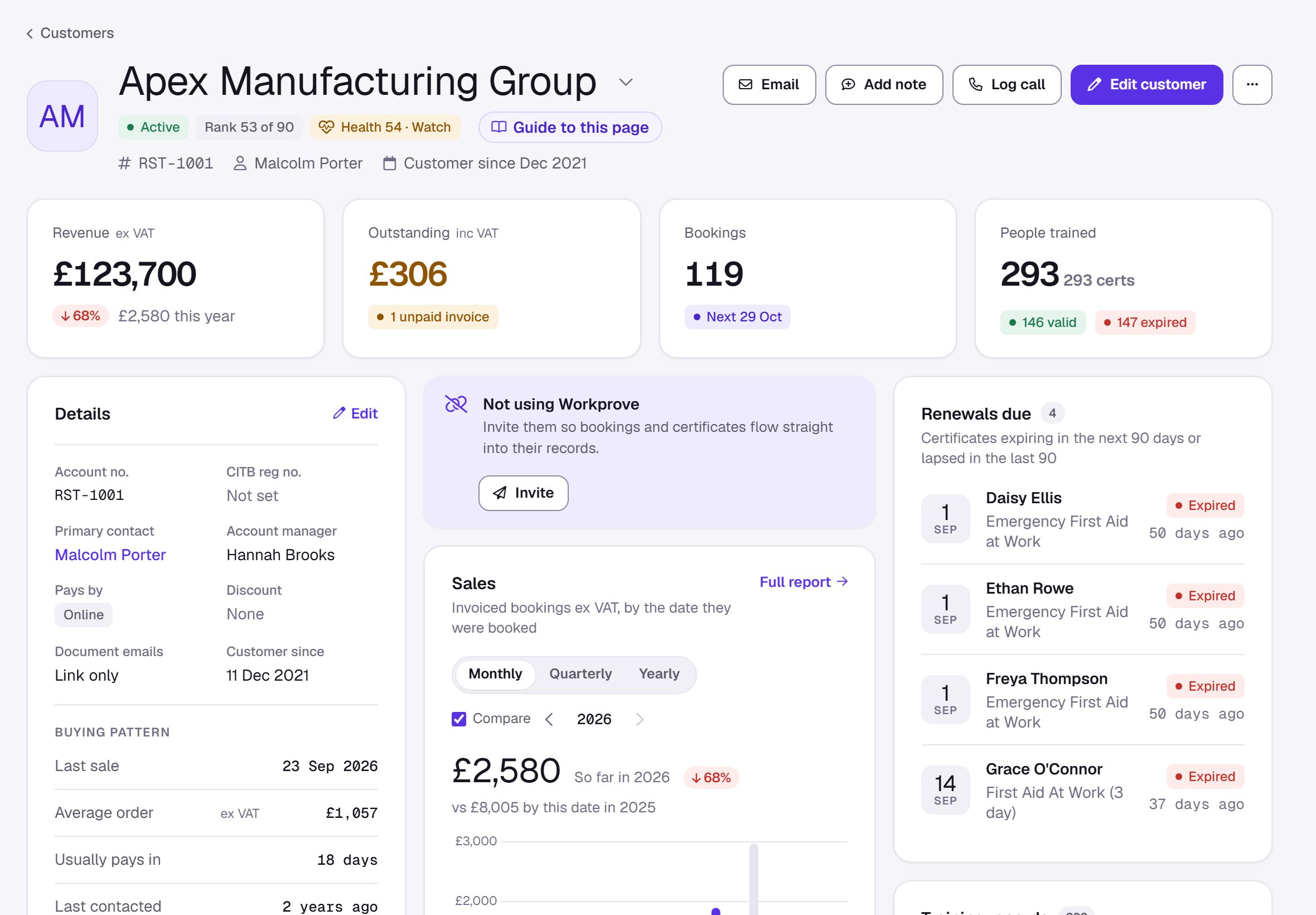
- Account health on every customer page: a score from 0 to 100 (Healthy, Watch or At risk), with the reason for each part.
- Needs attention on the Customers page lists customers whose health fell, who are at risk or who have gone quiet, with Log call on each.
- Who's who marks who decides, books, pays and leads training at each customer.
- Log call on customer, lead and contact pages records calls, meetings, emails, site visits and notes, with an outcome and a follow-up reminder.
- Leads have a Plan (estimated value, places and next step), and Convert to customer works without a booking.
Reminders, leads and your own fields
- Reminders pop up on every page when they are due, with Done, Snooze and Edit. Type one from the + button as you would say it ("Chase Acme for their PO tomorrow at 10am"), make it repeat, choose Remind me about this on any record, or give one to a colleague, who is emailed too. Your own reminders are private; super admins can see the reminders people give each other on the Team tab.
- Website enquiry form: in Settings > Booking page, share the link or paste one line of code onto your website. Each enquiry becomes a lead with a reminder to reply within the hour. Choose who gets new enquiries (or take turns) and see how fast they are answered.
- From an email on the Leads page: paste an email and its details become a lead.
- Your own fields and tags on customers, leads and contacts, with tags you can filter on and reach in Marketing.
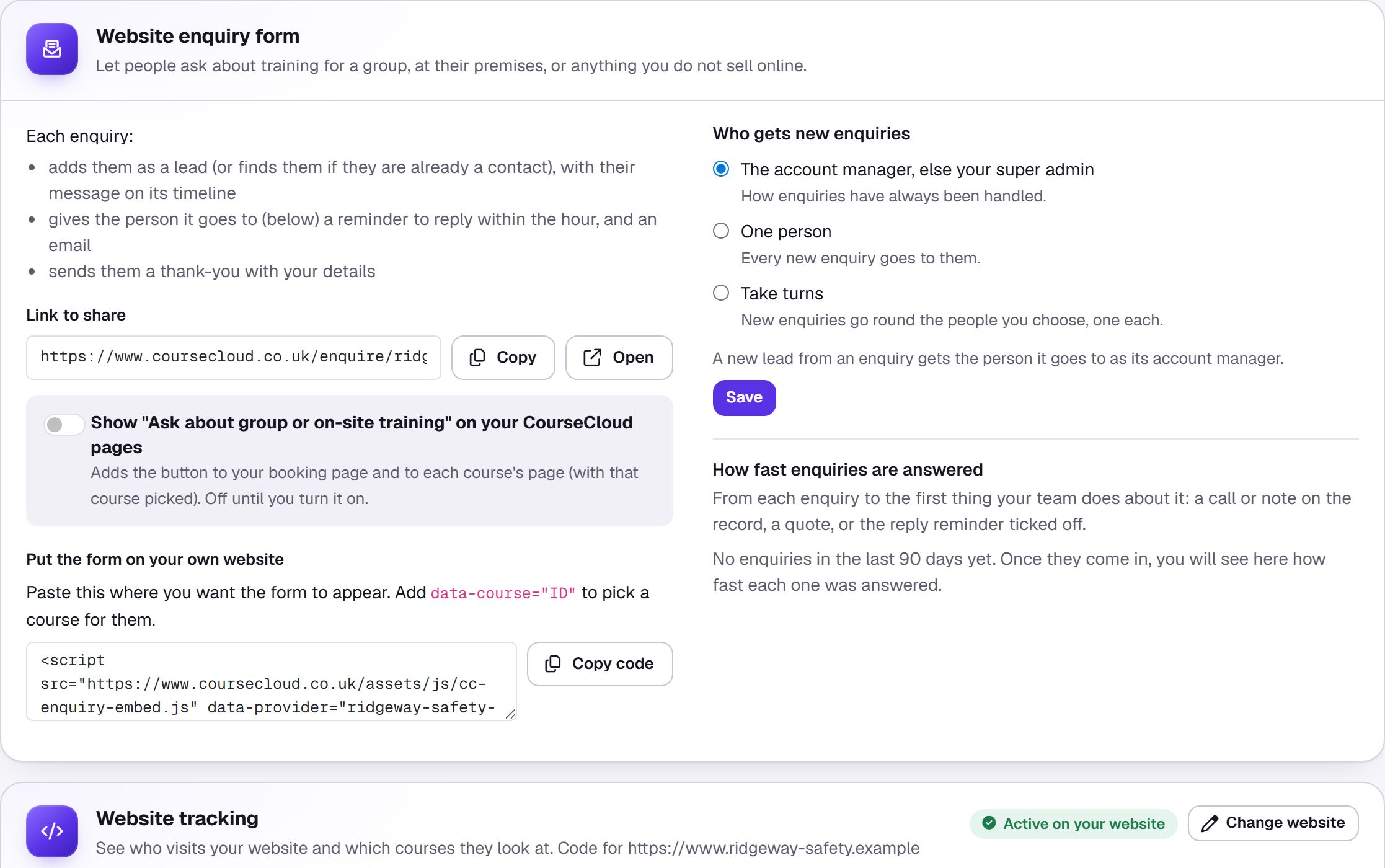
Radar, quotes, logging calls, Who's who, reminders, the enquiry form and your own fields and tags are in every plan. Account health, Needs attention and Won and lost quotes are in the Insights add-on. Automatic draft group quotes and having CourseCloud read an email into a lead are in the Autopilot add-on.
Marketing emails that go out
Marketing has been rebuilt so that campaigns and automations reliably send, look professional and stay within the rules, with tabs for Campaigns, Automations, Templates, Audiences, Landing pages and Analytics.
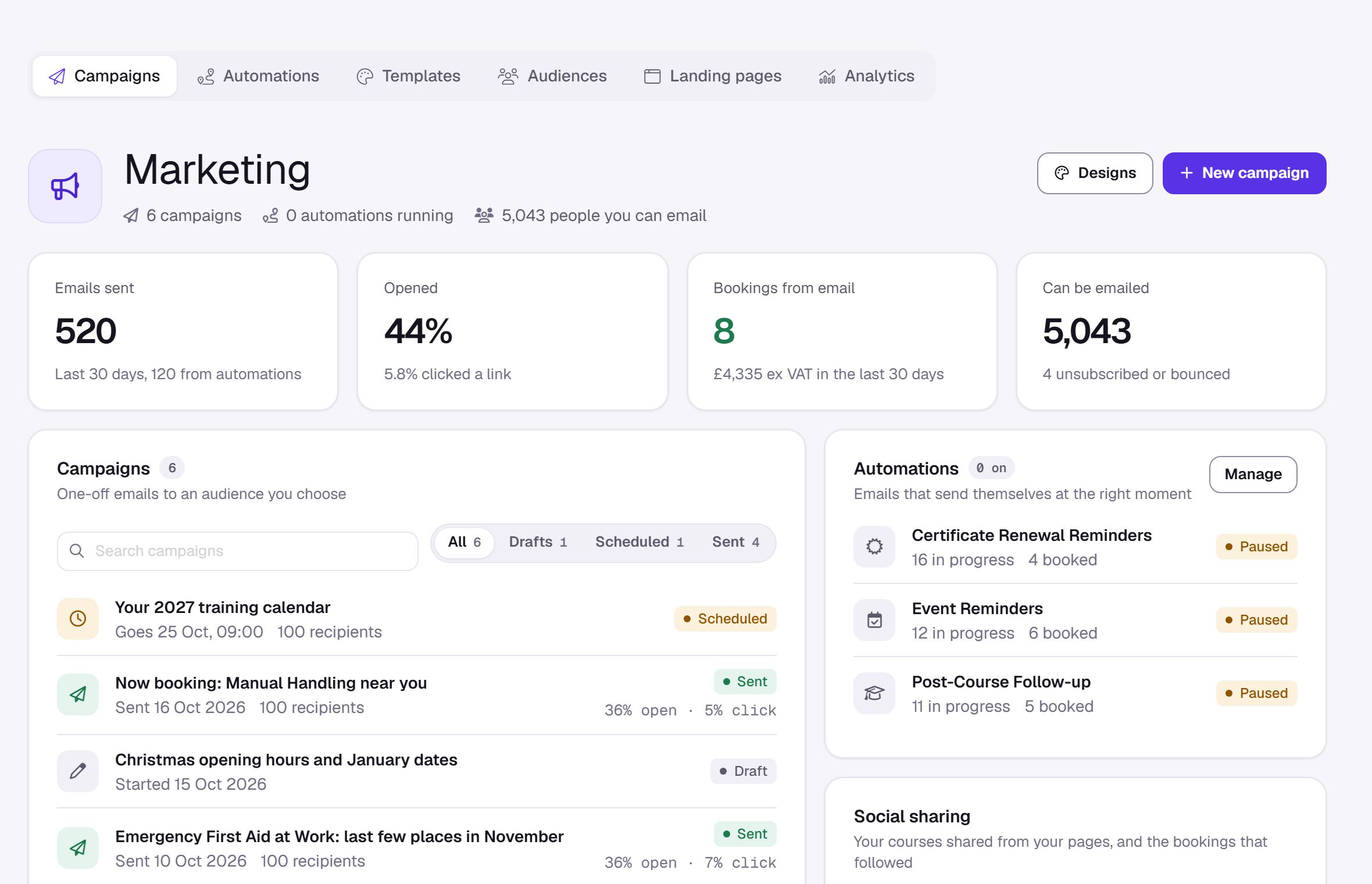
- Start here turns your real renewals into a campaign.
- Build a segment to reach exactly the right people, and see how many can be emailed as you go.
- Ready to send? checks your email first, and Preview shows it on desktop and mobile.
- Automations now send, with email, text message, wait and condition steps.
- Templates come ready in your brand colours and logo, and every email has your address and a one-click unsubscribe. Start from a design offers 12 campaign designs and 6 automation designs, each shown with your own logo, colours and address.
- Click any step of an automation to change it.
- Landing pages are built by dragging blocks into place, and shared by link.
Emails send between 8am and 7pm, an automation stops as soon as the person books, and every booking a campaign brings in is credited to it. Bounces and spam complaints stop further emails to that address automatically.
The law requires a postal address in every marketing email, so no marketing email is sent until your business address is filled in under Settings > Profile. Automations that were switched on before now really send, so check they still say what you want.
Marketing is in the Marketing add-on. Campaigns and automations send once your account is live.
Payments: choose how each course is paid for, and refund at a click
Card, invoice, or let the buyer choose
- Go to Settings > Sales.
- Under Default payment for online bookings, choose Card payment only, Buyer chooses card or invoice or Invoice only.
- To change a single course, open it in your inventory and set Payment at checkout.
If a course is not yet confirmed when someone books, their card is saved securely and charged when you click Confirm event. If their bank needs them to approve it, or the card is declined, they get a link to pay, at most once a day.
If you would like to check new customers first, switch on Approve online bookings from new customers paying by invoice in Settings > Sales. Their places are held, you approve or decline from the booking, and anything you have not answered within 72 hours is declined and the places released. Card payments, account customers and returning customers are never held.
Raise invoices in Xero, Sage or another system? Switch on Raise invoices in your own accounting system under Customer invoicing in Settings > Sales, and CourseCloud stops creating, numbering and emailing invoices to your customers. Bookings already invoiced keep their invoice.
Checkout now also asks every buyer for a telephone number and country, your new-booking email flags anything worth checking, and a buyer without an account with you can make at most five unpaid invoice bookings a day.
Refund a card payment when you cancel
When you cancel a booking that was paid by card at checkout, you can now refund it in full (the default), in part or not at all. The money goes back to the buyer's card, they are emailed, and the refund is noted on the booking's timeline. You can refund the rest later. Open the booking and choose Cancel and refund from its menu.
Only super admins can refund, and CourseCloud asks for your password first. CourseCloud's card fee is not returned with a refund.
Card-paid bookings read as paid
A booking paid by card now says so, with its receipt, instead of asking you to send an invoice, and it is never flagged as overdue.
Booking emails your customers will trust
Every booking email now shares one clean design that reads well in Outlook and on a phone. Your logo leads each email (or your business name if you have no logo yet), and it is now part of the email itself, so it always shows. Greetings are always "Hi" and the person's first name.
- The buyer's booking confirmation, booking requests and declines are signed with your business name, and replies come straight to you.
- New online bookings and accepted quotes are clearly marked for your team, with Open booking and a Worth checking note when something needs a look.
- A booking that needs your approval now arrives as Booking request to approve, not as a confirmed booking.
Upload your logo in Settings > Profile and every email leads with it.
Help on every page
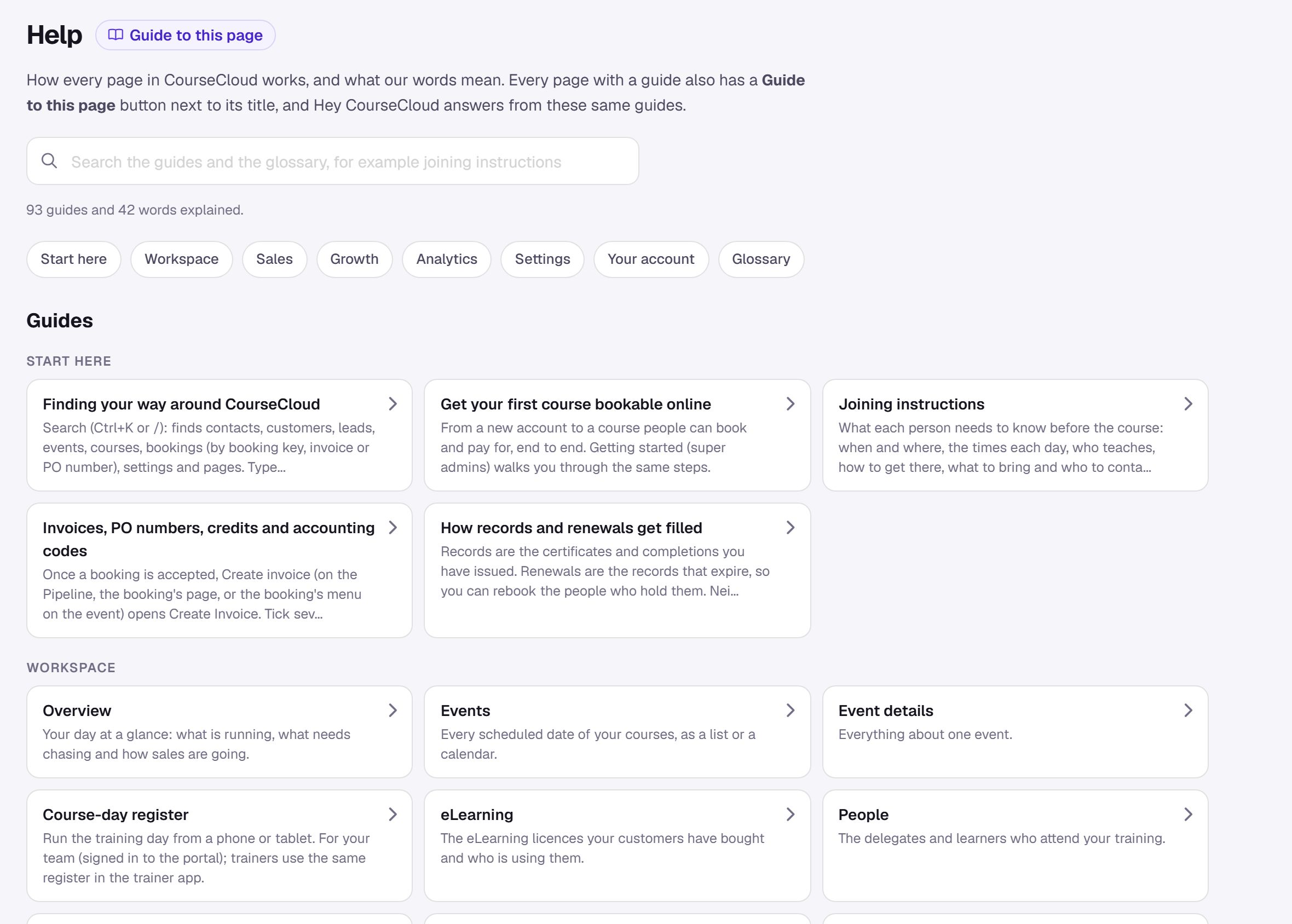
- Guide to this page sits next to every page title and explains what the page is for and how to use it.
- Help in the sidebar has every guide in one place, a search box and a glossary of the words CourseCloud uses. Hey CourseCloud answers from the same guides.
- Empty and blocked lists now say what the list is, why it is empty and give you the button that fixes it, such as Add a course before your first event.
- Settings > Courses has a Listed online column, with a check that says why a course is not listed and how to fix it.
Every table and page works the same way
- Every list has the same toolbar. Press / to search, open Filters to filter on any visible column, and save the result as a view. Lists with statuses show them as tabs.
- Pages switch instantly, and Ctrl+K searches contacts, customers, leads, events, courses, bookings and settings in one place.
- Pin your favourite pages to your sidebar: Ctrl+K > Pin this page to your sidebar, or Pin to sidebar… in a list's views menu.
- Every record page leads with the figures that matter: a customer's buying pattern, renewals due and anything overdue; an event's fill, takings and results; a course's, venue's or trainer's next event and days delivered.
- Hey CourseCloud sits in the top bar (Ctrl+Shift+K). Ask it about your bookings, events and customers by typing or by voice, such as "Which customers should I call this week?" or "Who decides at Apex?". With the microphone allowed, just say "Hey CourseCloud". Rate any answer with a thumbs up or down, and pick up earlier conversations from its history. It can only make changes if you switch that on in Settings > Automations, and then only after you confirm.
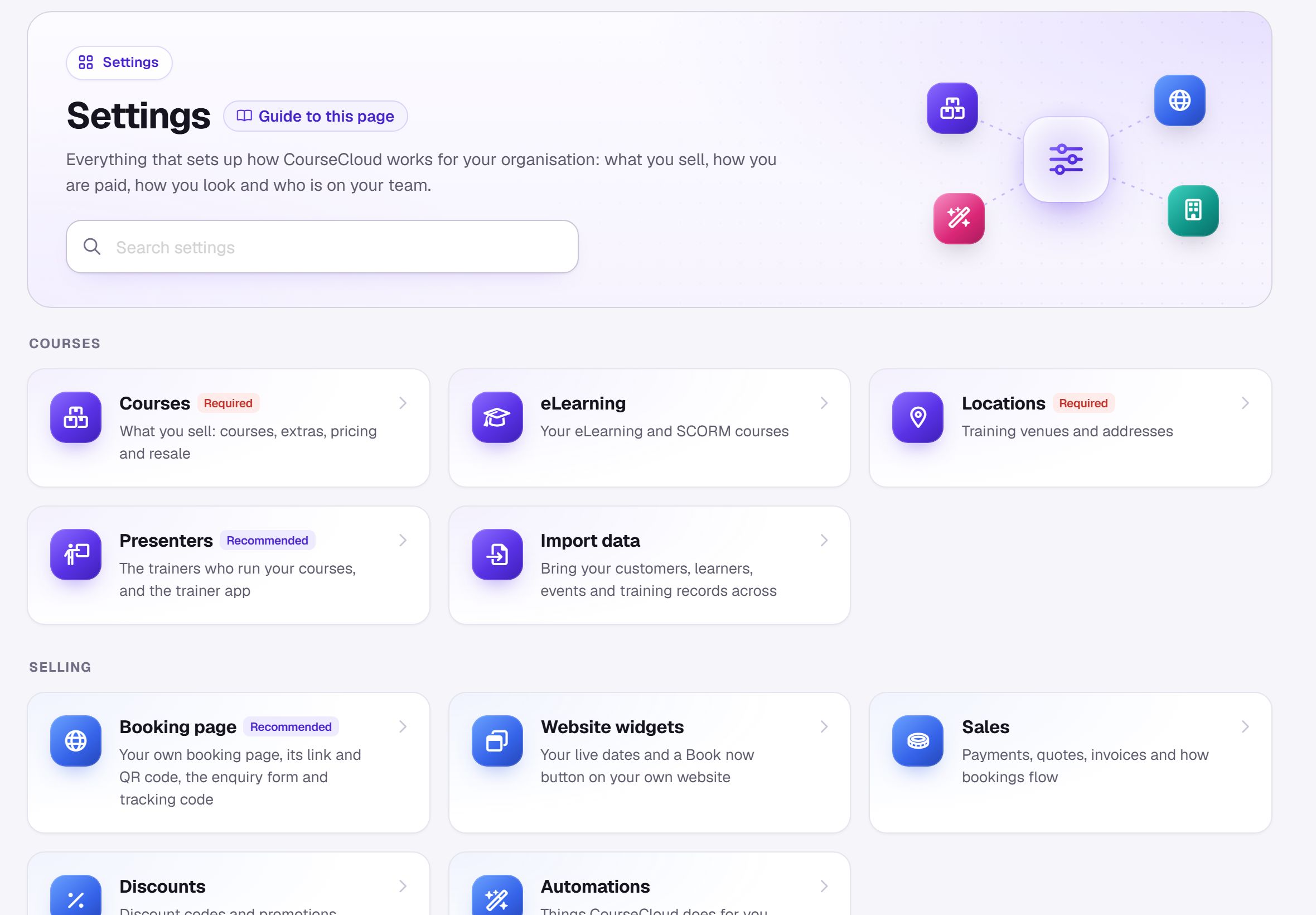
A tidier Settings
Settings is grouped into Courses, Selling and Organisation, the same on the Settings home, the menu and search, and the Settings home has its own search. Four half-pages joined the pages they belong with:
- Tracking is now part of Settings > Booking page (which used to be called Webstore), with your booking link, QR code, enquiry form and tracking code together.
- Branding is now part of Settings > Profile, with your company details.
- Resale is the Resale performance tab in Settings > Courses (which used to be called Inventory).
- Your process is How your bookings flow on Settings > Sales.
Old links and bookmarks still take you to the right place.
Analytics you can act on
Analytics opens on a menu of reports, and every report now counts revenue the same way, so the figures agree wherever you look.
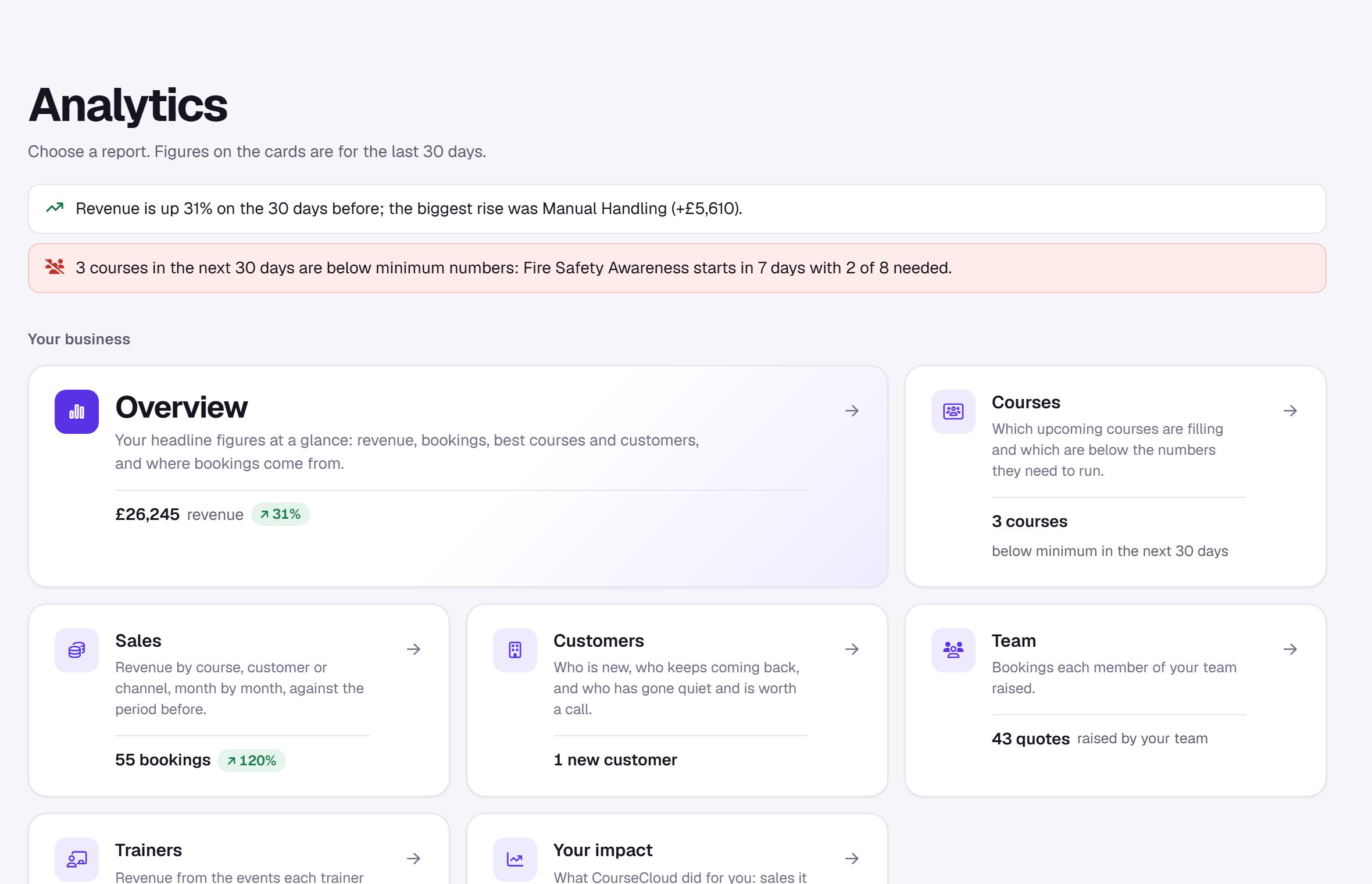
- Courses shows upcoming courses that are below their minimum or nearly full.
- Customers includes Gone quiet, customers worth getting back in touch with.
- Team includes how quickly quotes are sent and won, and Trainers shows the revenue from each trainer's events.
- Marketplace shows what people search for on CourseCloud that matches your courses, and Search visibility which of your pages search engines have visited.
- Widgets shows what your website widgets sell.
- Your impact shows what CourseCloud did for you, with the working behind every figure. Print or save as PDF to share it.
- Save view on any report keeps it with your filters on the Analytics menu, and Compare sets it against the period before.
Bookings whose invoice has been sent but not paid now read Invoice sent and are no longer counted as paid, so some totals may be a little lower than before.
Analytics is for super admins. The Customers, Trainers, Visitor journey, Marketplace, Search visibility and Website reports are in the Insights add-on.
Create an event in a minute, and see them all
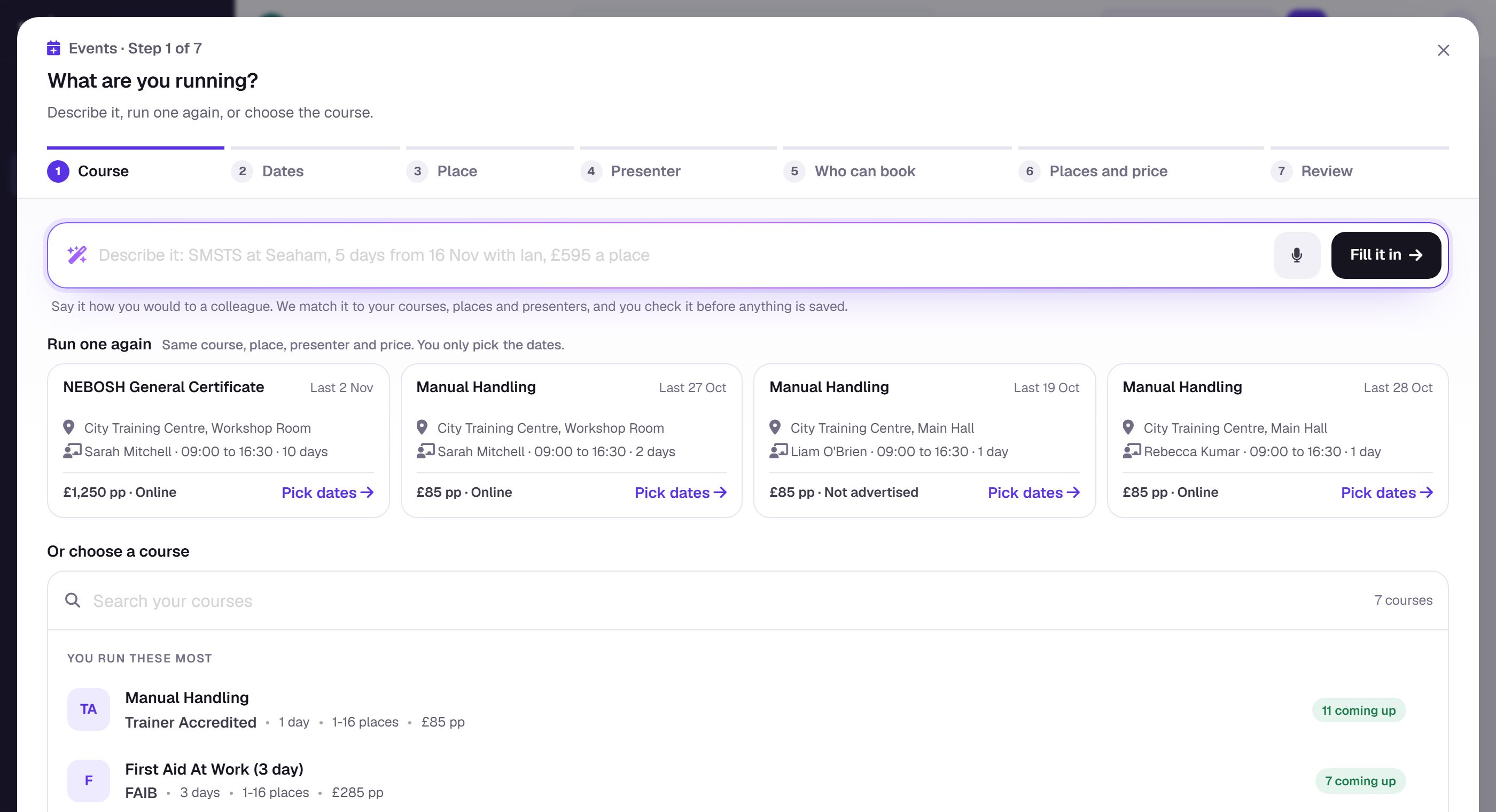
Create event opens full screen and walks you through seven short steps. Describe it in a sentence, typed or spoken ("SMSTS at Seaham, 5 days from 16 Nov with Ian, £595 a place"), press Fill it in and check what it found, or Run one again to repeat a recent event. Rooms and trainers show whether they are free, and a live preview shows your online listing and the joining instructions. Pick the first day and the rest of the course's run fills itself in, and the calendar marks days the course already runs. Send a test emails you the joining instructions as a PDF before the event is even scheduled, and if you close part-way, your draft is kept.
Joining instructions are now one well-designed document, the same on screen, as a PDF and attached to booking emails, with a map and a QR code to the latest version.
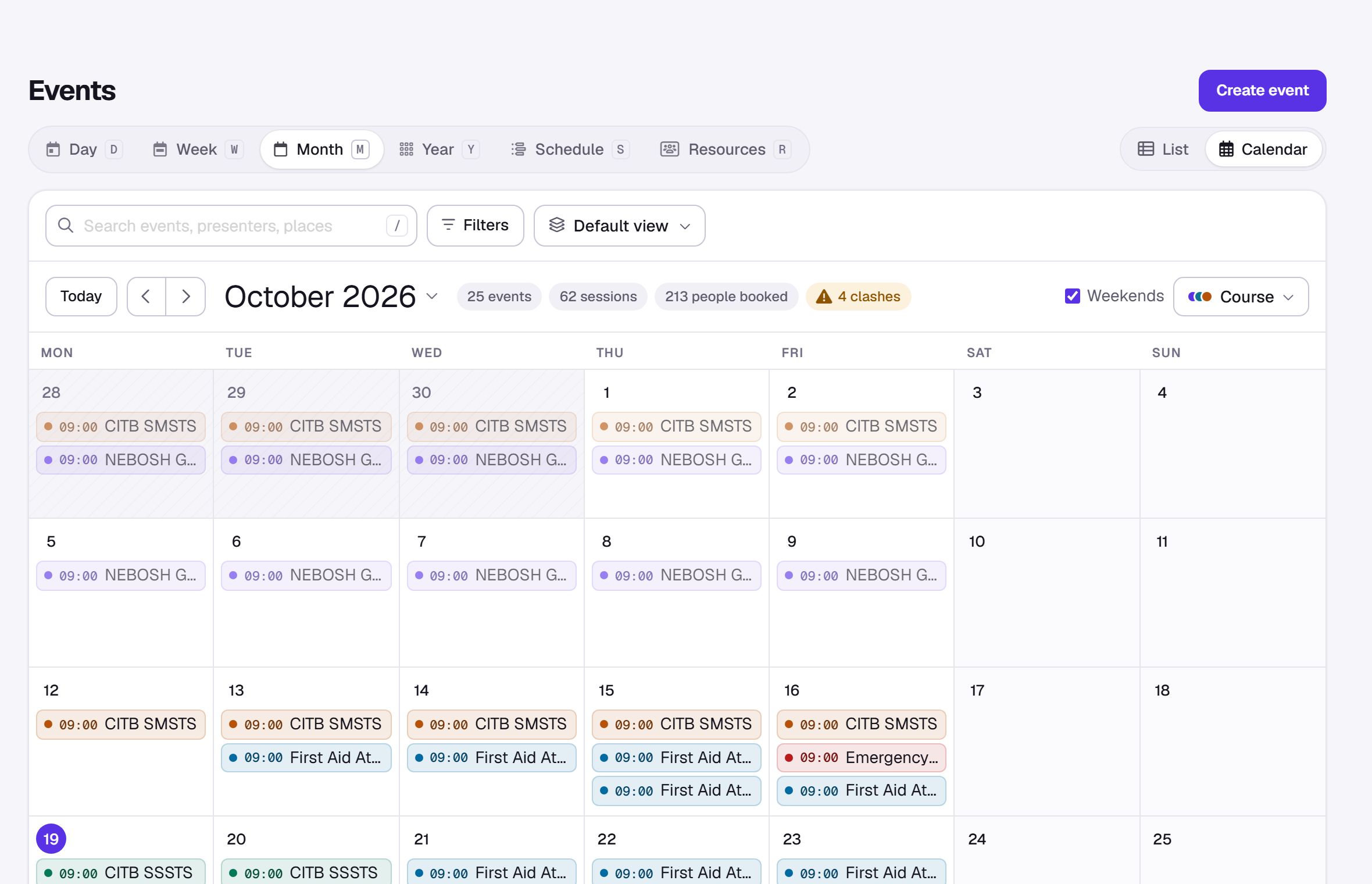
The events list and calendar share the same search, filters and saved views. The calendar has Day, Week, Month, Year, Schedule and Resources views, and you can colour events by course, trainer, location, room or status. It warns you when a trainer or room is booked twice, shows bank holidays, and you can click an empty slot to create an event then. Press D, W, M or Y to switch to day, week, month or year, and T for today.
Each event page opens with places filled, revenue, start date and bookings, a Takings card, and bookings you can show as All, Open, Unpaid or Paid. The Dates card shows each day on its own line, with what every day shares in an Every day row, and past days marked done.
Outlook, calendars, accounts and reviews
- Inbox in the sidebar: each person connects their own Outlook and sees their email inside CourseCloud, one click from the right customer or lead. Quotes, invoices and joining instructions can be sent from your own mailbox.
- Trainers can add their teaching days to their own calendar, and trainers who connect their Outlook calendar show as busy when you choose who teaches. Only busy times are read.
- Xero and Sage 50 exports import cleanly. Each invoice comes across with its customer, the course with its dates, venue and attendees, discounts, extras and the right VAT, matching the invoice total.
- Course reviews. Attendees are invited to rate the course afterwards and choose whether their review is published. Reply publicly from Analytics > Reviews.
Privacy and security
- Approval before you see someone's Workpass profile. When you link a person who has their own Workpass profile, they approve it first. Until then you see their name and their bookings and certificates with you.
- Your session locks when you step away. After 30 minutes without activity CourseCloud locks with your work kept underneath; unlock with your password or passkey. Everyone signs in again every 12 hours, and sensitive actions ask for your password again.
- Staff who leave lose access straight away, and a change of role applies at once.
- A sign-up has to prove its email. Until the 6-digit code is entered, a new account cannot claim training that was booked under that email address.
- Safer sign-in, payments and public pages. Two-step verification is checked on every sign-in, sign-up codes expire after 15 minutes, and we have strengthened checks across sign-in, uploads, payments, email and every page that changes your data.
Improvements
- Presenters are now called trainers, everywhere you see them: the menu (Settings > Trainers), events, imports, emails and the help. Nothing else changes: your trainers, their courses and their events are exactly as they were, and searching for "presenter" still finds them.
- Your own website, built in CourseCloud. Settings > Website builder builds your whole website from your courses, dates and reviews, which stay up to date by themselves: pages from ready-made layouts, a blog, your site's styles, and Bring your current website across to start from what you have. Build my website with AI writes your main pages as drafts from your own details, and Website health checks your site every 15 minutes and keeps a copy you can download. Publishing needs the Website add-on.
- Partner with other providers. Settings > Courses > Partners: find a provider and partner to sell each other's courses, and choose for each course Who can resell it (any provider, any provider once you approve them, or only your partners). Open to live accounts with reselling.
- One place for every integration. Settings > Integrations shows Outlook, Outlook Calendar, Stripe, Xero, Sage 50, HubSpot, Mailchimp, Eventbrite, website tracking and your enquiry form, each with whether it is connected, a search box and a side panel to set it up.
- Getting started is calmer: a progress ring on its sidebar link, an Up next card, and finished stages fold away.
- What's new at sign-in lets you choose Don't show this again or Remind me next time, and a short New in CourseCloud note sits at the foot of each page until you have seen it. You can also be emailed about updates, and unsubscribe at any time.
- Have an offer code? on the Billing page, and any account credit you have earned shows there and is used automatically.
- Your customers can invite you. A customer can invite the training providers they already use. If you are on CourseCloud, they are linked to you as your customer straight away and your admins are told.
- Website tracking works. The tracking code on your own website now records visits, and Settings > Booking page shows Active on your website once it does.
- Faster checkout. Checkout confirms the booking as soon as it is saved, and the emails follow straight after.
- Everyone lands in the right place when they sign in. Your customers and learners go to their own account, your staff to the portal, and trainers find Trainer app in their menu. Sign in on your booking page opens sign-in for your customers, not sign-up for providers.
- Book on the day. An event that starts today stays bookable until its start time.
- Can't find a course? When a search on the CourseCloud marketplace finds nothing, buyers can ask us to find it for them. On your own booking page, an empty search offers a link to ask you about it instead, which opens your enquiry form.
- Course and town pages on CourseCloud show the next dates and places left.
- Your branding everywhere. Sign-in opened from your booking page or checkout shows your name or logo, and if you have no logo yet your business name is shown instead of a broken image. Uploading a logo in setup is now optional.
- A clearer setup. Every step is listed down the side, Continue stays in view, setup asks for an email for customers, and it shows your own offer.
- Staff setup. New staff get their own short Your setup; the founder finds theirs in the profile menu as Your profile and sign-in.
- Search every update. coursecloud.co.uk/updates now has a search box that finds the exact section that answers your question, as you type, and each update has Find in this update. You can search from What's new in the top bar too.
- You will not miss an update. Every change is explained at coursecloud.co.uk/updates, with an RSS feed, and a new update opens when you sign in. Find them any time under What's new in the top bar.
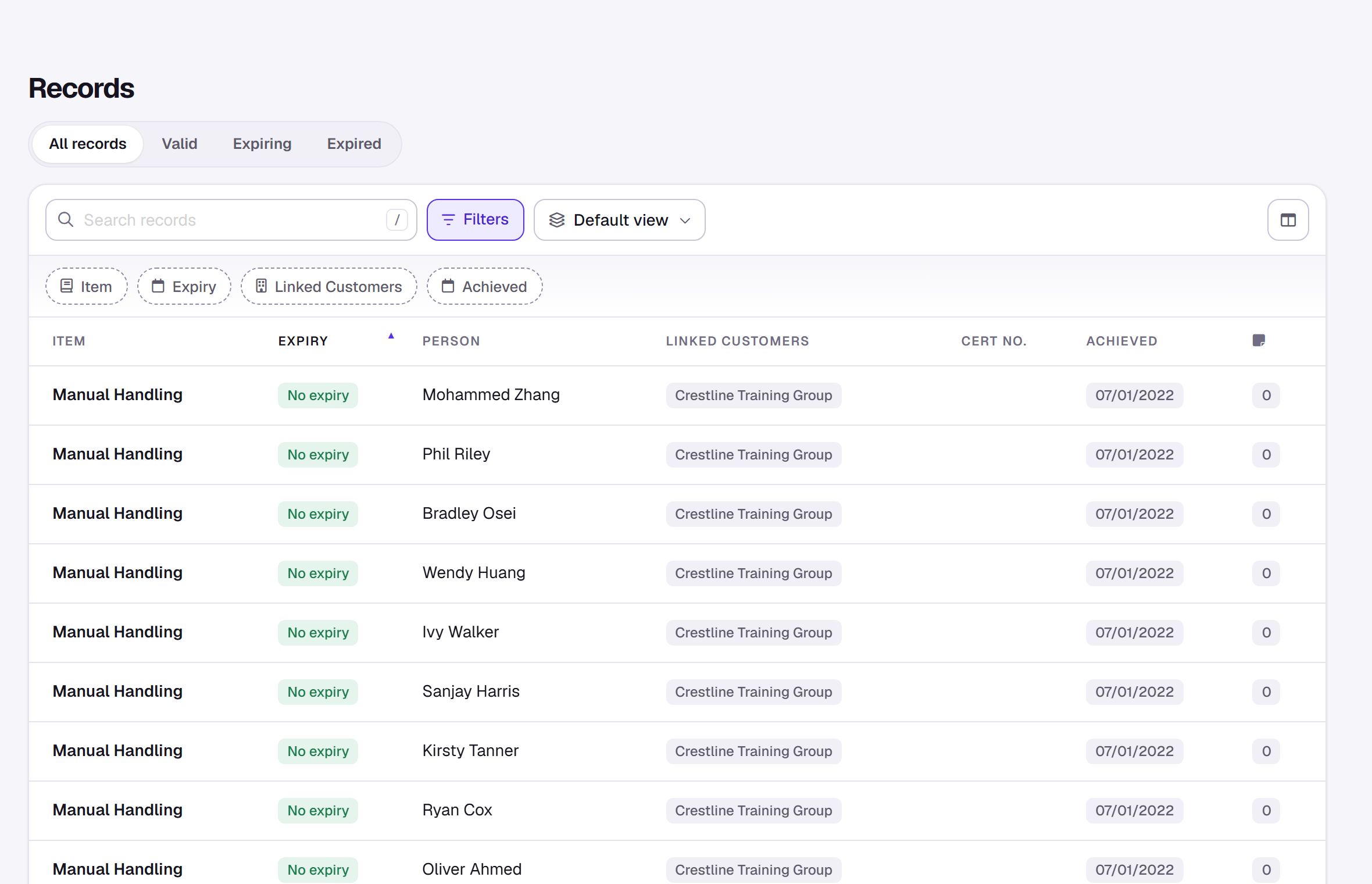
- Records show the right customer. The Linked Customers column now finds the customer for far more certificates, and sorting by expiry or customer works and is much faster.
- Maintenance notices tell you well in advance if CourseCloud ever needs to go offline.
- Super admin pages. Analytics and Settings > Profile, Certificates, Billing, Users and Integrations are for super admins; other staff see a short note explaining why.
- The Settings and Getting started links stay visible at the bottom of the sidebar when it is collapsed.
- More ways to be found. New course and awarding-body pages on CourseCloud list live dates from every provider who runs that course.
- The Go live page keeps its loading message until Stripe's verification form appears, and My bookings fits a phone screen.
- Settings pages look like one product, open faster and no longer jump about while they load.
Fixes
- Record pages show the right figures: a contact's bookings, a customer's last sale and sales chart, and a trainer's revenue (which was counted twice).
- If a buyer pays twice for the same booking in two browser windows, the second payment is refunded automatically and they are told.
- If an activation email is not accepted, sign-up now says so instead of telling you a code is on its way.
- Search results show the correct number of days for multi-day courses.
- A payment is never taken twice for the same booking or plan, and Direct Debit payments are confirmed reliably.
- Paying an invoice by card keeps the invoice number you sent, and a booking marked as paid can no longer be paid again from an old link.
- A booking request you declined, or that expired, can no longer be confirmed afterwards, and bookings can no longer take more places than an event has.
- Invoice numbers are always unique, even when two payments arrive at the same moment.
- The events list scrolls sideways again on smaller screens, and long tables no longer push the page footer out of place.
- Checkout no longer accepts a booking with nobody on it, or a classroom booking without a date.
- An event's shared drive, booking notes, creating an invoice from a booking and generating certificates all work reliably again.
- Courses that are not available online no longer appear in marketplace search.
- Saved cards on provisional events are now actually charged when you confirm the event, and confirming never charges a booking that is already invoiced or paid.
- Your booking page shows your soonest nine dates over the next 12 months, not only the next two weeks, and an event with no bookings no longer shows as fully booked.
- eLearning paid for by card unlocks straight away, and booking emails list each attendee's email address.
- Create event no longer says an event was scheduled when a time was left empty, and the new course form keeps what you typed.
- A new provider's owner now gets the new-booking email, and course reviews no longer appear more than once.
- Long contact names, emails or phone numbers no longer leave checkout stuck loading.
- Invoices for account customers use your own payment terms.
- A course page whose venue has no map pin no longer shows a broken map.
Nothing to do for most providers. If you are new, confirm your email with the code we sent you before you go live. To put your dates on your website, go to Settings > Website widgets. If you use Marketing, make sure your business address is filled in under Settings > Profile, and check any automations you switched on before. If you take card payments, check Default payment for online bookings in Settings > Sales. When you go live, choose your plan in Settings > Billing; if you do not, you are on Free and stay online. Expect to unlock CourseCloud after 30 minutes away and to sign in again every 12 hours. If you embedded videos in your course descriptions, they no longer show on your public pages: add a link to the video instead. To let all your staff export data, choose All staff under Who can export in Settings > Users.